Templates · Onboarding screens · Productivity app · Shortlist
Shortlist Welcome screen
An onboarding screen from Shortlist, a job search and application tracker app template in an Enterprise style. Screen 1 of 25.
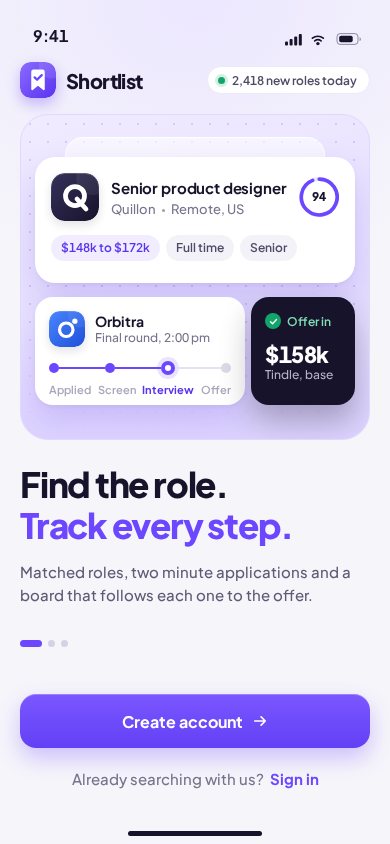
Shortlist is a complete job search app: welcome, sign in, a code and job preferences, a home with today's interview, the pipeline and top matches, search with filters and saved searches, a job page with a match breakdown, the company, a two step application with review and a sent confirmation, a tracker board, one application's timeline, the interview, prep questions with a practice timer, salary insights with a pay distribution, an offer breakdown, a Plus plan, notifications, profile and settings. Every company has its own drawn monogram and every role shows how well it matches.
| Detail | Value |
|---|---|
| Screen type | Onboarding |
| App | Shortlist: Job search and application tracker |
| Category | Productivity |
| Design language | Enterprise, light |
| Type | Plus Jakarta Sans |
| Colours | #f6f5fa background, #ffffff surface, #17132b text, #77738c text-muted, #6c47ff accent, #ffffff accent-contrast, #12a56b secondary, #eceaf4 border, #e5484d danger |
What this screen says
- Shortlist
- 2,418 new roles today
- Senior product designer
- QuillonRemote, US
- $148k to $172k Full time Senior
- Orbitra
- Final round, 2:00 pm
- Applied Screen InterviewOffer
- Offer in $158kTindle, base
- Find the role.
- Track every step.
- Matched roles, two minute applications and a board that follows each one to the offer.
- Create account
- Already searching with us? Sign in
Around it in Shortlist
More onboarding screens
- Tick Welcome: To-do lists and reminders
- Beacon Welcome: Find your devices and people
- Staffroom Welcome: HR, payslips and time off
- Slot Welcome: Booking links and meeting scheduling
- Sheet Welcome: Spreadsheets and databases
- Tunnel Welcome: VPN and online privacy
- Ping Welcome: Internet speed test
- Glance Welcome: Visual search with the camera
- Replay Welcome: Record and share screen videos
- Easel Welcome: Collaborative whiteboard
- Token Welcome: Two-factor codes and sign-in approvals
- Beam Welcome: Send big files
Every productivity app onboarding screen
What makes a good onboarding screen
- One idea per screen. Each screen should say one thing in a headline people can read in a second. If a screen needs a paragraph, it is doing too much.
- Personalise with a purpose. Ask a question only if the answer changes what people see next, like a goal, a level or an interest. Then show that the answer mattered.
- Explain permissions before asking. Show your own screen saying why you need notifications, location or the camera before the system prompt. People who understand the reason are more likely to allow it.
- Let people skip. A visible skip or "I'll do this later" respects returning users and the impatient. Make sure skipping still lands them somewhere useful.
The full onboarding screen guide and every example
Remix Shortlist free: describe your own app and it is drawn in this design. Or get its files from $10: Figma, React Native, SwiftUI, Flutter and HTML.