Templates · List and feed screens · Productivity app · Sheet
Sheet Automations screen
A list screen from Sheet, a spreadsheets and databases app template in an Enterprise style. Screen 20 of 25.
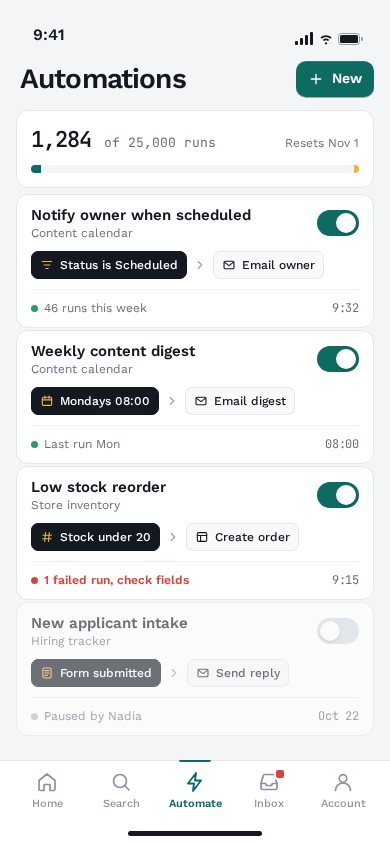
Sheet is a complete team database and spreadsheet app: welcome, sign in with SSO, starting a base from a template, a home of starred and recent bases, a base with its tables and views, a dense grid with typed fields and a frozen first column, an expanded record, adding a field, a formula editor, filters and sort, kanban and calendar views, a request form with its confirmation, search, record activity, a summary dashboard, a classic budget sheet with a formula bar, sharing, automations and an automation builder, a team plan, inbox, account and settings. Cool grey and white with deep spruce, saffron and pastel select tags.
| Detail | Value |
|---|---|
| Screen type | List |
| App | Sheet: Spreadsheets and databases |
| Category | Productivity |
| Design language | Enterprise, light |
| Type | JetBrains Mono for headings, Work Sans for text |
| Colours | #f4f5f7 background, #ffffff surface, #141821 text, #666e7f text-muted, #0d6b62 accent, #ffffff accent-contrast, #f6b23c secondary, #e3e6eb border, #d6453d danger |
What this screen says
- Automations
- New
- 1,284 of 25,000 runs
- Resets Nov 1
- Notify owner when scheduled
- Content calendar
- Status is Scheduled Email owner
- 46 runs this week 9:32
- Weekly content digest
- Mondays 08:00 Email digest
- Last run Mon 08:00
- Low stock reorder
- Store inventory
- Stock under 20 Create order
- 1 failed run, check fields 9:15
- New applicant intake
- Hiring tracker
- Form submitted Send reply
- Paused by Nadia Oct 22
- Home
- Search
- Automate
- Inbox
- Account
Around it in Sheet
More list and feed screens
- Unplug Schedules: Screen time blocker
- Streak Friends: Small days, long chains
- Deskly Rooms: Hybrid office booking
- Pomo Notifications: Focus timer
- Postbox Swipe actions: Email for busy teams
- Daybook Day: Calendar and planner
- Scanly Notifications: Document scanner
- Keyring Logins: Password manager
- Rota Notifications: Shift scheduling for hourly teams
- Inkwell Prompts: Daily journal
- Shortlist Notifications: Job search and application tracker
- Parley Add members: Team messenger
Every productivity app list screen
What makes a good list screen
- Show what people need to decide. Each row should carry just enough to choose: a title, one or two details and a status. Everything else belongs on the detail screen.
- Keep rows consistent. The same information in the same place on every row lets people scan down a column instead of reading each item.
- Group with headings. Dates, categories or status headings break long lists into chunks people can skip through.
- Make common actions quick. Swipe actions, a checkbox or a heart on the row save opening the item for small tasks.
The full list screen guide and every example
Remix Sheet free: describe your own app and it is drawn in this design. Or get its files from $10: Figma, React Native, SwiftUI, Flutter and HTML.