Templates · Onboarding screens · Productivity app · Pageview
Pageview Connect site screen
An onboarding screen from Pageview, a website analytics app template in an Enterprise style. Screen 3 of 25.
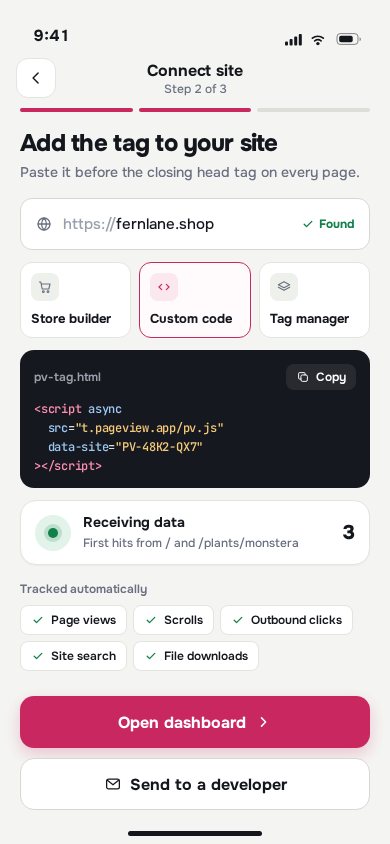
Pageview is a complete website analytics app for an online plant shop: welcome, sign in and connecting the site with a tracking snippet, a home overview with metric cards and a period comparison chart, realtime visitors with minute bars and a live event stream, a report library, acquisition by channel and a channel's sources, pages and a page in depth, events and key events, audience by country and device, weekly retention cohorts, a checkout funnel, segment comparison, a custom date range, search, alerts with a new alert form and its confirmation, notifications, a Pro plan, account and settings. Pale stone and white with berry, ocean, saffron and sage series colours.
| Detail | Value |
|---|---|
| Screen type | Onboarding |
| App | Pageview: Website analytics |
| Category | Productivity |
| Design language | Enterprise, light |
| Type | JetBrains Mono for headings, Onest for text |
| Colours | #f4f5f2 background, #ffffff surface, #13161c text, #6a7080 text-muted, #c8285f accent, #fbe7ee accent-tint, #16181f secondary, #e3e5df border, #2f6fb0 chart-2, #e09a2b chart-3, #4f9a74 chart-4, #11804a success, #c2410c danger |
What this screen says
- Connect siteStep 2 of 3
- Add the tag to your site
- Paste it before the closing head tag on every page.
- https://fernlane.shop Found
- Store builder
- Custom code
- Tag manager
- pv-tag.html Copy
- <script async
- src ="t.pageview.app/pv.js"
- data-site ="PV-48K2-QX7"
- ></script>
- Receiving dataFirst hits from / and /plants/monstera
- Tracked automatically
- Page views Scrolls Outbound clicks Site search File downloads
- Open dashboard
- Send to a developer
Around it in Pageview
More onboarding screens
- Tick Welcome: To-do lists and reminders
- Beacon Welcome: Find your devices and people
- Staffroom Welcome: HR, payslips and time off
- Slot Welcome: Booking links and meeting scheduling
- Sheet Welcome: Spreadsheets and databases
- Tunnel Welcome: VPN and online privacy
- Ping Welcome: Internet speed test
- Glance Welcome: Visual search with the camera
- Replay Welcome: Record and share screen videos
- Easel Welcome: Collaborative whiteboard
- Token Welcome: Two-factor codes and sign-in approvals
- Beam Welcome: Send big files
Every productivity app onboarding screen
What makes a good onboarding screen
- One idea per screen. Each screen should say one thing in a headline people can read in a second. If a screen needs a paragraph, it is doing too much.
- Personalise with a purpose. Ask a question only if the answer changes what people see next, like a goal, a level or an interest. Then show that the answer mattered.
- Explain permissions before asking. Show your own screen saying why you need notifications, location or the camera before the system prompt. People who understand the reason are more likely to allow it.
- Let people skip. A visible skip or "I'll do this later" respects returning users and the impatient. Make sure skipping still lands them somewhere useful.
The full onboarding screen guide and every example
Remix Pageview free: describe your own app and it is drawn in this design. Or get its files from $10: Figma, React Native, SwiftUI, Flutter and HTML.