Templates · Onboarding screens · Smart home app · Mesh
Mesh Add node screen
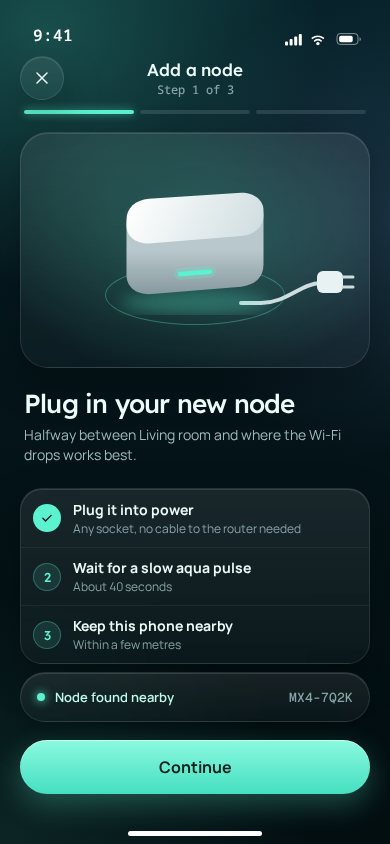
An onboarding screen from Mesh, a home Wi-Fi network app template in a Glass style. Screen 17 of 25.
Mesh is a complete home Wi-Fi app: welcome, sign in and a code, a home with network health, a live topology map, node details, every connected device with usage, search, family profiles with pause and bedtime schedules, a guest network to share, a live speed test with history, security and ad blocking, adding a node with placement guidance, notifications, a Shield plan with checkout, account and settings. Deep petrol glass with aqua and ice blue.
| Detail | Value |
|---|---|
| Screen type | Onboarding |
| App | Mesh: Home Wi-Fi network |
| Category | Smart home |
| Design language | Glass, dark |
| Type | Lexend for headings, Manrope for text |
| Colours | #041419 background, #12282e surface, #eefcf9 text, #86a3a6 text-muted, #5cf2cf accent, #03211c accent-contrast, #8fb6ff secondary, #22393e border, #ff7a85 danger |
What this screen says
- Add a nodeStep 1 of 3
- Plug in your new node
- Halfway between Living room and where the Wi-Fi drops works best.
- Plug it into power
- Any socket, no cable to the router needed
- Wait for a slow aqua pulse
- About 40 seconds
- Keep this phone nearby
- Within a few metres
- Node found nearbyMX4-7Q2K
- Continue
Around it in Mesh
More onboarding screens
- Nursery Welcome: Baby monitor camera and sleep
- Porch Welcome: Home security cameras
- Sundial Welcome: Solar panels and home battery
- Puddle Welcome: Garden watering and sprinklers
- Upkeep Welcome: Home maintenance calendar
- Kelvin Welcome: Climate and thermostat
- Glow Welcome: Light scenes and colour
- Tagged Welcome: Home inventory for insurance
- Lobby Welcome: Apartment building app
- Sweep Welcome: Robot vacuum and mop
- Dusk Welcome: Smart home scenarios
- Lumen Welcome: Smart home energy
Every smart home app onboarding screen
What makes a good onboarding screen
- One idea per screen. Each screen should say one thing in a headline people can read in a second. If a screen needs a paragraph, it is doing too much.
- Personalise with a purpose. Ask a question only if the answer changes what people see next, like a goal, a level or an interest. Then show that the answer mattered.
- Explain permissions before asking. Show your own screen saying why you need notifications, location or the camera before the system prompt. People who understand the reason are more likely to allow it.
- Let people skip. A visible skip or "I'll do this later" respects returning users and the impatient. Make sure skipping still lands them somewhere useful.
The full onboarding screen guide and every example
Remix Mesh free: describe your own app and it is drawn in this design. Or get its files from $10: Figma, React Native, SwiftUI, Flutter and HTML.