Templates · List and feed screens · Productivity app · Jot
Jot Shared screen
A list screen from Jot, a quick notes and checklists app template in a Minimal style. Screen 16 of 25.
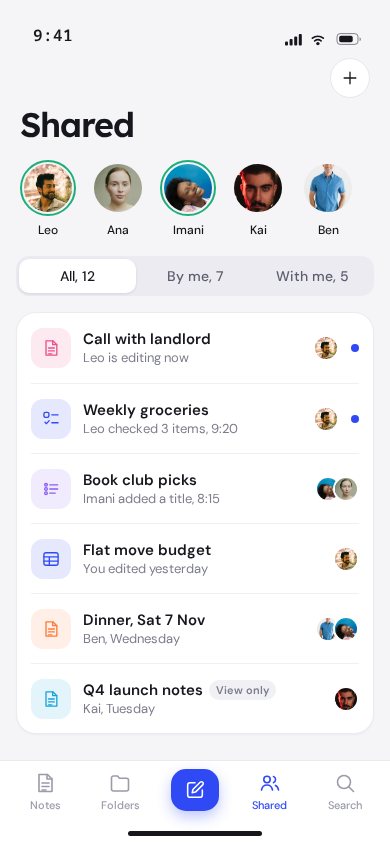
Jot is a complete everyday notes app: welcome, storage setup, sign in, a notes home with pinned cards and today's notes, folders with smart folders, a gallery folder, a note with a photo and checklist, a shared grocery checklist, a budget table, a sketch canvas with a tool tray, a document camera and the scanned result with found text, a format sheet, search that reaches inside tables and scans, tags, shared notes with live collaboration, sharing and an invite confirmation, a locked note, insights, notifications, a Plus plan, profile and settings. Cool paper grey and white with cobalt ink and a tangerine fold.
| Detail | Value |
|---|---|
| Screen type | List |
| App | Jot: Quick notes and checklists |
| Category | Productivity |
| Design language | Minimal, light |
| Type | Lexend for headings, DM Sans for text |
| Colours | #f5f5f8 background, #ffffff surface, #16161d text, #7c7d8c text-muted, #2f49f5 accent, #ffffff accent-contrast, #ff7a3d secondary, #ebebf1 border, #ec4f8b danger |
What this screen says
- Shared
- Leo
- Ana
- Imani
- Kai
- Ben
- All, 12 By me, 7 With me, 5
- Call with landlord
- Leo is editing now
- Weekly groceries
- Leo checked 3 items, 9:20
- Book club picks
- Imani added a title, 8:15
- Flat move budget
- You edited yesterday
- Dinner, Sat 7 Nov
- Ben, Wednesday
- Q4 launch notes View only
- Kai, Tuesday
- Notes
- Folders
- Search
Around it in Jot
More list and feed screens
- Ping History: Internet speed test
- Glance History: Visual search with the camera
- Replay Library: Record and share screen videos
- Easel Templates: Collaborative whiteboard
- Token Requests: Two-factor codes and sign-in approvals
- Beam Transfers: Send big files
- Parchment Files: Documents, edit and share
- Lectern New deck: Slides and presenter remote
- Ringer Recents: Phone, contacts and voicemail
- Pipeline: Sales CRM on the road
- Aim Objectives: Goals and key results
- Scribe Action items: Voice memos to notes
Every productivity app list screen
What makes a good list screen
- Show what people need to decide. Each row should carry just enough to choose: a title, one or two details and a status. Everything else belongs on the detail screen.
- Keep rows consistent. The same information in the same place on every row lets people scan down a column instead of reading each item.
- Group with headings. Dates, categories or status headings break long lists into chunks people can skip through.
- Make common actions quick. Swipe actions, a checkbox or a heart on the row save opening the item for small tasks.
The full list screen guide and every example
Remix Jot free: describe your own app and it is drawn in this design. Or get its files from $10: Figma, React Native, SwiftUI, Flutter and HTML.