Templates · Sign in and sign up screens · Productivity app · Inkwell
Inkwell Passcode screen
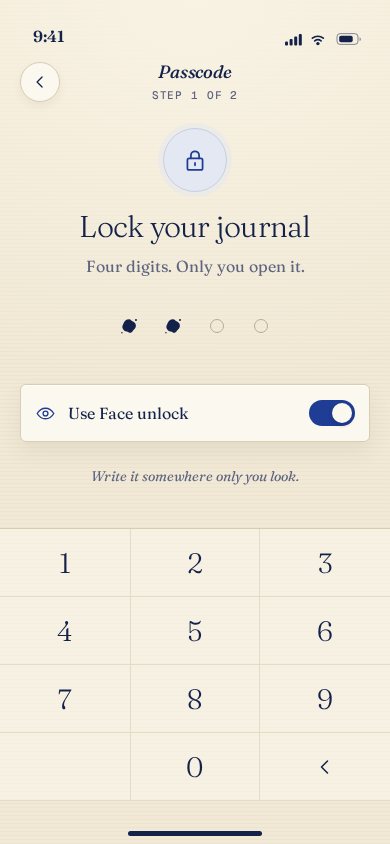
A sign in screen from Inkwell, a daily journal app template in a Luxury style. Screen 4 of 25.
Inkwell is a complete daily journal: welcome, sign in, a passcode lock and a daily reminder, today's page with a prompt, a ruled editor with photos, a mood drawn in ink, the saved entry, the whole journal as a timeline, a calendar of entries, search, tags, on this day, mood trends, a year in review, a printed volume to order, a Folio plan, notifications, profile and settings. Every date is a postmark and every page is paper.
| Detail | Value |
|---|---|
| Screen type | Sign in |
| App | Inkwell: Daily journal |
| Category | Productivity |
| Design language | Luxury, light |
| Type | Fraunces |
| Colours | #f1e9d6 background, #fbf8ef surface, #14224a text, #5e6480 text-muted, #1f3d94 accent, #fbf8ef accent-contrast, #d9e0ee secondary, #d8cdb2 border, #a8392b danger |
What this screen says
- Passcode
- Step 1 of 2
- Lock your journal
- Four digits. Only you open it.
- Use Face unlock
- Write it somewhere only you look.
Around it in Inkwell
More sign in and sign up screens
- Merge Sign in: Code, pull requests and reviews
- Query Sign in: AI answers with sources
- Glossa Sign in: Translate text, voice and camera
- Layout Sign in: Design anything from templates
- Tick Sign in: To-do lists and reminders
- Beacon Sign in: Find your devices and people
- Staffroom Sign in: HR, payslips and time off
- Slot Sign in: Booking links and meeting scheduling
- Sheet Sign in: Spreadsheets and databases
- Tunnel Sign in: VPN and online privacy
- Ping Sign in: Internet speed test
- Glance Sign in: Visual search with the camera
Every productivity app sign in screen
What makes a good login screen
- Offer the fastest option first. Sign in with Apple, Google or a passkey takes one tap. If you support them, put them above the email form. Apple asks apps that use a third-party login like Google to also offer an equivalent privacy-focused option, such as Sign in with Apple.
- Separate sign in from sign up clearly. Use different headings and buttons, and a clear link to switch. People who already have an account should never end up creating a second one by accident.
- Use the right keyboard and autofill. Email fields should open the email keyboard and support password managers and one-time code autofill. Small details, big difference in how many people get through.
- Write errors that help. "That password doesn't match this email" is better than "Error 401". Keep what people typed so they only fix the part that was wrong.
The full login screen guide and every example
Remix Inkwell free: describe your own app and it is drawn in this design. Or get its files from $10: Figma, React Native, SwiftUI, Flutter and HTML.