Templates · Onboarding screens · Lifestyle app · Fern
Fern Your space screen
An onboarding screen from Fern, a plant care app template in a Minimal style. Screen 3 of 25.
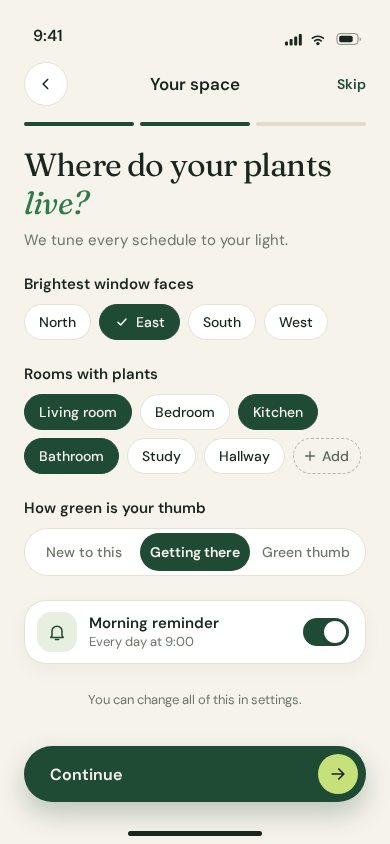
Fern is a complete plant care app: welcome, sign in and a short setup, a home with today's care tasks, every plant you own and a full plant page, a watering schedule with logging and a success screen, adding a plant, identifying one by photo with a match page, a light meter, a leaf doctor that diagnoses a problem and plans the treatment, care guides, insights, a small shop with product and cart, a Plus plan, reminders, profile and settings. One forest green for actions and one lime for whatever is done or healthy.
| Detail | Value |
|---|---|
| Screen type | Onboarding |
| App | Fern: Plant care |
| Category | Lifestyle |
| Design language | Minimal, light |
| Type | DM Sans |
| Colours | #f6f3ea background, #ffffff surface, #18261d text, #6c766c text-muted, #1f4a33 accent, #f6f3ea accent-contrast, #c6e07a secondary, #e7e2d5 border, #c4523a danger |
What this screen says
- Your space
- Skip
- Where do your plants
- live?
- We tune every schedule to your light.
- Brightest window faces
- North East South West
- Rooms with plants
- Living room Bedroom Kitchen
- Bathroom Study Hallway Add
- How green is your thumb
- New to this Getting there Green thumb
- Morning reminderEvery day at 9:00
- You can change all of this in settings.
- Continue
Around it in Fern
More onboarding screens
- Collar Welcome: GPS pet tracker
- Postage Welcome: Send parcels and find drop-off points
- Specs Welcome: Glasses with virtual try-on
- Circuit Welcome: Electronics store with trade-in and repairs
- Provenance Welcome: Authenticated luxury resale
- Gavel Welcome: Live online auctions
- Tidy Welcome: Book home cleaners
- Dorm Welcome: Find student housing
- Hem Welcome: Tailoring and alterations, collected
- Lendly Welcome: Borrow things from neighbours
- Stub Welcome: Fan to fan ticket resale
- Trove Welcome: Visual ideas and boards
Every lifestyle app onboarding screen
What makes a good onboarding screen
- One idea per screen. Each screen should say one thing in a headline people can read in a second. If a screen needs a paragraph, it is doing too much.
- Personalise with a purpose. Ask a question only if the answer changes what people see next, like a goal, a level or an interest. Then show that the answer mattered.
- Explain permissions before asking. Show your own screen saying why you need notifications, location or the camera before the system prompt. People who understand the reason are more likely to allow it.
- Let people skip. A visible skip or "I'll do this later" respects returning users and the impatient. Make sure skipping still lands them somewhere useful.
The full onboarding screen guide and every example
Remix Fern free: describe your own app and it is drawn in this design. Or get its files from $10: Figma, React Native, SwiftUI, Flutter and HTML.