Templates · Settings screens · Travel app · Fare
Fare Settings screen
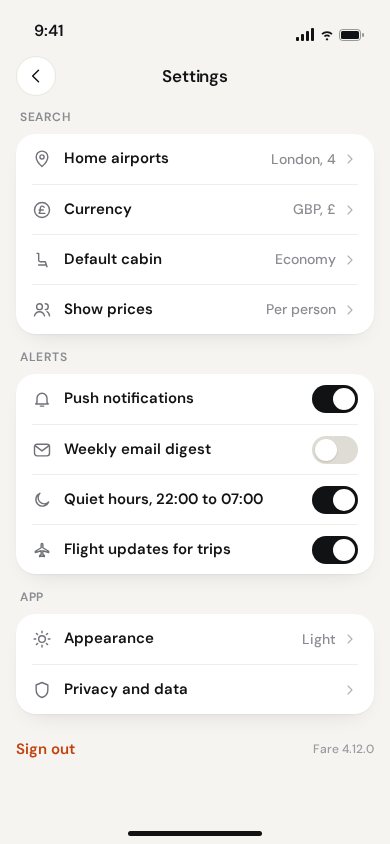
A settings screen from Fare, a flight search and price alerts app template in a Minimal style. Screen 25 of 25.
Fare is a complete flight search app: welcome, home airport, sign in, a search home with a dotted route arc, airport search, a fare calendar, results, filters, a flight itinerary, fare options, passengers, seat map, review and pay, booked, trips, a boarding pass, live flight status, price history with a forecast, price alerts and a new alert, explore by price, notifications, a premium plan, profile and settings. Warm paper and white with ink black and a single flare orange.
| Detail | Value |
|---|---|
| Screen type | Settings |
| App | Fare: Flight search and price alerts |
| Category | Travel |
| Design language | Minimal, light |
| Type | Bricolage Grotesque for headings, DM Sans for text |
| Colours | #f5f4f0 background, #ffffff surface, #111214 text, #6f7177 text-muted, #ff4f2e accent, #ffffff accent-contrast, #111214 secondary, #e8e6df border, #12804a success |
What this screen says
- Settings
- Search
- Home airports London, 4
- Currency GBP, £
- Default cabin Economy
- Show prices Per person
- Alerts
- Push notifications
- Weekly email digest
- Quiet hours, 22:00 to 07:00
- Flight updates for trips
- App
- Appearance Light
- Privacy and data
- Sign out Fare 4.12.0
Around it in Fare
More settings screens
- Nomad Settings: Travel eSIM data plans
- Tern Settings: Ferry and island hopping
- Berth Settings: Night trains and sleeper cabins
- Caravan Settings: Campervan rental and road trips
- Layover Settings: Airport guide, gates and lounges
- Permit Settings: Visas and travel documents wallet
- Backroad Settings: Road trip planner with stops
- Bunk Settings: Hostels and backpacker meetups
- Piazza Settings: Self-guided city walking tours
- Fjord Settings: Cruise companion on board
- Atlas Route options: Maps and navigation
- Kerb Settings: Parking that reads like a road sign
Every travel app settings screen
What makes a good settings screen
- Group options into clear sections. Account, notifications, privacy, appearance and help, with headings, so people scan to the right group.
- Label settings by their effect. "Daily reminder at 8:00" is clearer than "Reminders". Add a short description under options that need one.
- Use the right control. Toggles for on and off, a row that opens a list for choices, and sliders only for ranges.
- Apply changes immediately. Most mobile settings take effect when changed, with no Save button to forget.
The full settings screen guide and every example
Remix Fare free: describe your own app and it is drawn in this design. Or get its files from $10: Figma, React Native, SwiftUI, Flutter and HTML.