Templates · Onboarding screens · Finance app · Envelope
Envelope Welcome screen
An onboarding screen from Envelope, a finance app template in a Minimal style. Screen 1 of 25.
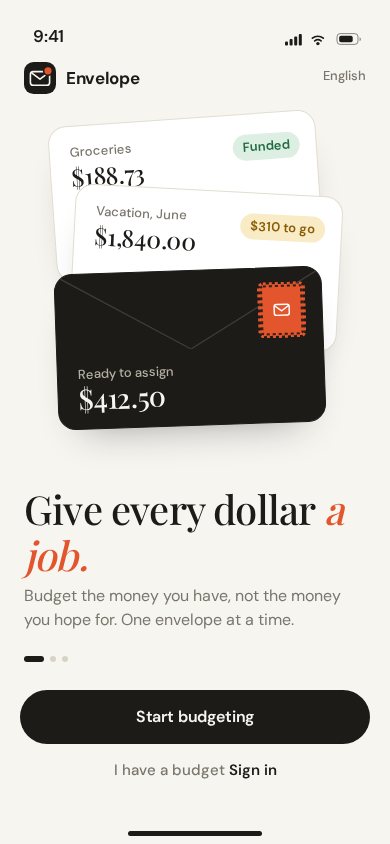
Envelope is a complete zero based budgeting app: welcome and category setup, sign in, a monthly budget with money ready to assign and category groups, a category with assigned, activity and available, assigning on a keypad, moving money to cover overspending, targets and quick assign, accounts and an account register, a transaction, adding and splitting transactions, reconciling with a confirmation, spending, net worth and age of money reports, search, scheduled transactions, notifications, a membership plan, profile and settings. Warm paper and ink with one vermilion accent.
| Detail | Value |
|---|---|
| Screen type | Onboarding |
| App | Envelope: Give every dollar a job |
| Category | Finance |
| Design language | Minimal, light |
| Type | Playfair Display for headings, DM Sans for text |
| Colours | #f7f5f0 background, #ffffff surface, #1c1b18 text, #7a766d text-muted, #e2552d accent, #ffffff accent-contrast, #1c1b18 secondary, #ebe6dc border, #c8392b danger |
What this screen says
- Envelope
- English
- Groceries
- $188.73Funded
- Vacation, June
- $1,840.00$310 to go
- Ready to assign
- Give every dollar a job.
- Budget the money you have, not the money you hope for. One envelope at a time.
- Start budgeting
- I have a budget Sign in
Around it in Envelope
More onboarding screens
- Bastion Welcome: Everyday banking from a big bank
- Later Welcome: Buy now, pay in four
- Standing Welcome: Credit score and reports
- Accrue Welcome: Retirement and pension planner
- Levy Welcome: Taxes for freelancers
- Bullion Welcome: Gold and silver savings
- Wage Welcome: Get paid as you work
- Keystone Welcome: Mortgage and home loan tracker
- Rebate Welcome: Cashback card and rewards
- Aegis Welcome: Insurance policies and claims
- Till Welcome: Card reader and sales for small shops
- Strike Welcome: Options trading
Every finance app onboarding screen
What makes a good onboarding screen
- One idea per screen. Each screen should say one thing in a headline people can read in a second. If a screen needs a paragraph, it is doing too much.
- Personalise with a purpose. Ask a question only if the answer changes what people see next, like a goal, a level or an interest. Then show that the answer mattered.
- Explain permissions before asking. Show your own screen saying why you need notifications, location or the camera before the system prompt. People who understand the reason are more likely to allow it.
- Let people skip. A visible skip or "I'll do this later" respects returning users and the impatient. Make sure skipping still lands them somewhere useful.
The full onboarding screen guide and every example
Remix Envelope free: describe your own app and it is drawn in this design. Or get its files from $10: Figma, React Native, SwiftUI, Flutter and HTML.