Templates · Onboarding screens · Finance app · Keystone
Keystone Welcome screen
An onboarding screen from Keystone, a mortgage and home loan tracker app template in an Enterprise style. Screen 1 of 25.
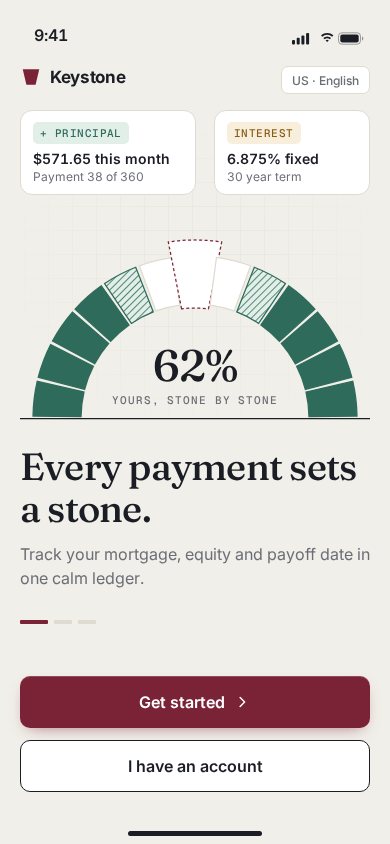
Keystone is a complete home loan tracker: welcome, sign in and linking a lender, a home with the equity arch and the next payment, loan details, the full amortization schedule, a payment breakdown and history, making a payment with extra principal, review and confirmation, a payoff planner, refinance offers with a break-even chart, a live rate lock, home value, property, escrow, equity and PMI removal, documents and a statement viewer, a Pro plan, notifications, profile and settings. Limestone and white with oxblood, verdigris and ochre.
| Detail | Value |
|---|---|
| Screen type | Onboarding |
| App | Keystone: Mortgage and home loan tracker |
| Category | Finance |
| Design language | Enterprise, light |
| Type | Fraunces for headings, Inter for text |
| Colours | #f1efe9 background, #ffffff surface, #1a1d24 text, #6c6e76 text-muted, #7a2236 accent, #ffffff accent-contrast, #2e6b5b secondary, #dfdbd1 border, #b4361f danger |
What this screen says
- Keystone
- US · English
- 62%Yours, stone by stone
- + PRINCIPAL $571.65 this month
- Payment 38 of 360
- INTEREST 6.875% fixed
- 30 year term
- Every payment sets a stone.
- Track your mortgage, equity and payoff date in one calm ledger.
- Get started
- I have an account
Around it in Keystone
More onboarding screens
- Folio Welcome: Stocks and ETF investing
- Compound Welcome: Mutual funds and SIPs
- Halden Welcome: Premium neobank
- Billable Welcome: Time tracking and invoices, kept like a ledger
- Lease Welcome: Your tenancy, drawn to plan
- Claim Welcome: Expenses, filed like a till receipt
- Tally Welcome: Monthly budgeting
- Divvy Welcome: Split bills with friends
- Ticker Welcome: Stock investing
- Burrow Welcome: Shared savings pots
- Remit Welcome: International money transfer
- Piggy Welcome: Pocket money for kids
Every finance app onboarding screen
What makes a good onboarding screen
- One idea per screen. Each screen should say one thing in a headline people can read in a second. If a screen needs a paragraph, it is doing too much.
- Personalise with a purpose. Ask a question only if the answer changes what people see next, like a goal, a level or an interest. Then show that the answer mattered.
- Explain permissions before asking. Show your own screen saying why you need notifications, location or the camera before the system prompt. People who understand the reason are more likely to allow it.
- Let people skip. A visible skip or "I'll do this later" respects returning users and the impatient. Make sure skipping still lands them somewhere useful.
The full onboarding screen guide and every example
Remix Keystone free: describe your own app and it is drawn in this design. Or get its files from $10: Figma, React Native, SwiftUI, Flutter and HTML.