Templates · Onboarding screens · Fitness app · Bump
Bump Due date screen
An onboarding screen from Bump, a pregnancy week by week app template in a Glass style. Screen 2 of 25.
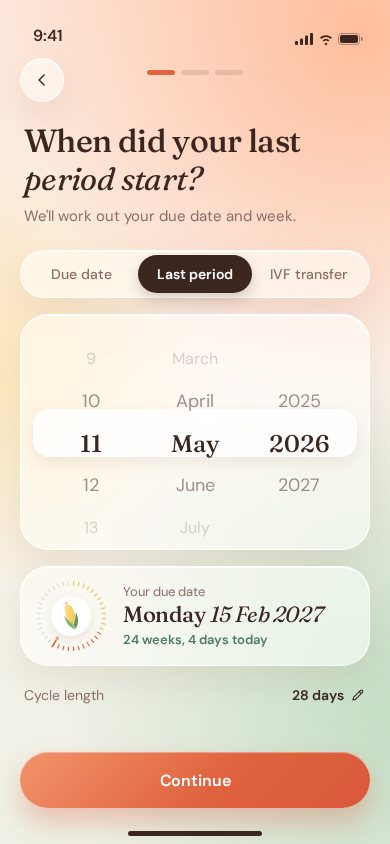
Bump is a complete pregnancy companion: welcome, a due date calculator, account, a today screen with the week dial, this week's baby and body changes, all 40 weeks, an ultrasound scan viewer, a kick counter and a contraction timer, a daily symptom log, a bump photo diary with a ghost outline camera, weight and symptom trends, appointments with prep, antenatal classes with booking, checkout and confirmation, a shared baby name shortlist, a hospital bag checklist, notifications, a Plus plan, profile and settings. Apricot, cream and sage glass with terracotta and soft serif numbers.
| Detail | Value |
|---|---|
| Screen type | Onboarding |
| App | Bump: Pregnancy week by week |
| Category | Health and fitness |
| Design language | Glass, light |
| Type | Fraunces for headings, DM Sans for text |
| Colours | #fbf2ea background, #ffffff surface, #3b2620 text, #8a6f66 text-muted, #e0643f accent, #ffffff accent-contrast, #6f9c80 secondary, #f2c45a highlight, #ecdcd2 border, #d0443a danger |
What this screen says
- When did your last period start?
- We'll work out your due date and week.
- Due date
- Last period
- IVF transfer
- March April MayJune July
- Your due date
- Monday 15 Feb 2027
- 24 weeks, 4 days today
- Cycle length 28 days
- Continue
Around it in Bump
More onboarding screens
- Fasten Welcome: Intermittent fasting
- Plate Welcome: Calorie and macro tracker
- Vita Welcome: Personal health record
- Forge Welcome: AI fitness and nutrition
- Lull Welcome: Sleep sounds and meditation
- Pace Welcome: Fitness tracker
- Flexpass Welcome: One membership, many studios
- Clinic Welcome: Find and book doctors
- Careline Welcome: Care for an ageing parent
- Velo Welcome: Live and on-demand indoor cycling
- Vantage Welcome: Sports watch companion
- Labwork Welcome: Book blood tests and see results
Every fitness app onboarding screen
What makes a good onboarding screen
- One idea per screen. Each screen should say one thing in a headline people can read in a second. If a screen needs a paragraph, it is doing too much.
- Personalise with a purpose. Ask a question only if the answer changes what people see next, like a goal, a level or an interest. Then show that the answer mattered.
- Explain permissions before asking. Show your own screen saying why you need notifications, location or the camera before the system prompt. People who understand the reason are more likely to allow it.
- Let people skip. A visible skip or "I'll do this later" respects returning users and the impatient. Make sure skipping still lands them somewhere useful.
The full onboarding screen guide and every example
Remix Bump free: describe your own app and it is drawn in this design. Or get its files from $10: Figma, React Native, SwiftUI, Flutter and HTML.