Templates · Onboarding screens · Fitness app · Careline
Careline Welcome screen
An onboarding screen from Careline, a care for an ageing parent app template in a Clinical style. Screen 1 of 25.
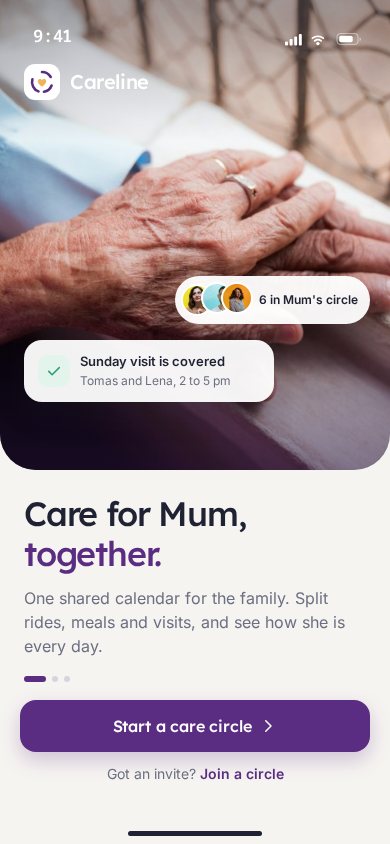
Careline is a complete family care circle app: welcome, sign in, a today screen with Mum's morning check in, a shared care calendar with open slots, task detail and sign up, new tasks, a medication schedule and refills, appointments with questions to ask, a live ride, an updates journal with comments, a big button check in for the parent, booking a paid home helper with a split cost, a document vault, the family chat, a monthly summary, a plus plan, notifications, the parent's profile with her circle, and settings. Porcelain and white with deep plum, a calm green for covered and a soft rose for help needed.
| Detail | Value |
|---|---|
| Screen type | Onboarding |
| App | Careline: Care for an ageing parent |
| Category | Health and fitness |
| Design language | Clinical, light |
| Type | Lexend for headings, Inter for text |
| Colours | #f6f4f1 background, #ffffff surface, #1e2233 text, #6b6f80 text-muted, #5a2d82 accent, #f1ebf8 primary-tint, #2e9b74 success, #d94f70 attention, #f2b25c warm-accent, #e7e2ea border |
What this screen says
- Careline
- 6 in Mum's circle
- Sunday visit is covered
- Tomas and Lena, 2 to 5 pm
- Care for Mum,
- together.
- One shared calendar for the family. Split rides, meals and visits, and see how she is every day.
- Start a care circle
- Got an invite? Join a circle
Around it in Careline
More onboarding screens
- Exhale Welcome: Breathwork sessions
- Bump Welcome: Pregnancy week by week
- Locker Welcome: Gym membership and class booking
- Morsel Welcome: AI calorie tracker
- Dew Welcome: AI skin scan and routine
- Cradle Welcome: Baby tracker
- Medly Welcome: Doctor on call
- Donor Welcome: Blood donation, counted drop by drop
- Unfold Welcome: Yoga and stretching
- Kilo Welcome: Strength training log
- Cyra Welcome: Cycle tracker
- Harbor Welcome: Therapy and mood
Every fitness app onboarding screen
What makes a good onboarding screen
- One idea per screen. Each screen should say one thing in a headline people can read in a second. If a screen needs a paragraph, it is doing too much.
- Personalise with a purpose. Ask a question only if the answer changes what people see next, like a goal, a level or an interest. Then show that the answer mattered.
- Explain permissions before asking. Show your own screen saying why you need notifications, location or the camera before the system prompt. People who understand the reason are more likely to allow it.
- Let people skip. A visible skip or "I'll do this later" respects returning users and the impatient. Make sure skipping still lands them somewhere useful.
The full onboarding screen guide and every example
Remix Careline free: describe your own app and it is drawn in this design. Or get its files from $10: Figma, React Native, SwiftUI, Flutter and HTML.