Templates · Sign in and sign up screens · Finance app · Tally
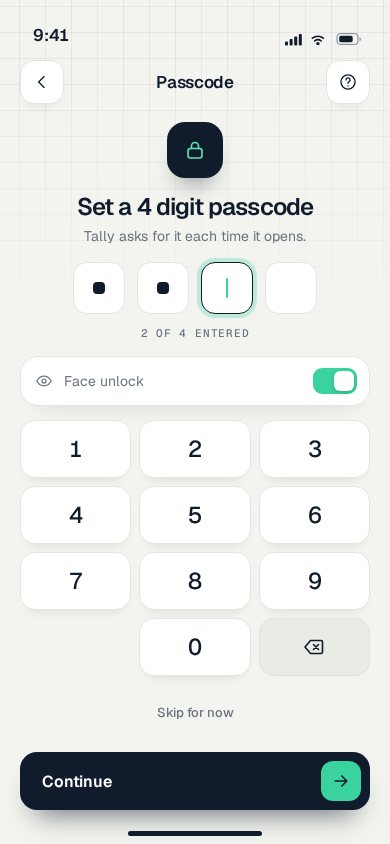
Tally Passcode screen
A sign in screen from Tally, a monthly budgeting app template in a Clinical style. Screen 4 of 25.
Tally is a complete budgeting app: welcome, sign in, passcode and budget setup, a home with what is left to spend, budgets by category with a donut, a category in detail, transactions and a single transaction, adding an expense on a keypad, recurring payments, savings goals, reports with bar charts, cash flow, linked accounts, a Plus plan, notifications, profile and settings. Every number is tabular and every category has its own colour and glyph.
| Detail | Value |
|---|---|
| Screen type | Sign in |
| App | Tally: Monthly budgeting |
| Category | Finance |
| Design language | Clinical, light |
| Type | Geist |
| Colours | #f3f4ef background, #ffffff surface, #101c2c text, #6a7480 text-muted, #3ad29f accent, #101c2c accent-contrast, #0b7a57 secondary, #e3e6df border, #e4573d danger |
What this screen says
- Passcode
- Set a 4 digit passcode
- Tally asks for it each time it opens.
- 2 of 4 entered
- Face unlock
- Skip for now
- Continue
Around it in Tally
More sign in and sign up screens
- Crest Sign in: Credit card bills and rewards
- Storefront Sign in: Run your online store
- Bastion Sign in: Everyday banking from a big bank
- Later Sign in: Buy now, pay in four
- Standing Create account: Credit score and reports
- Accrue Sign in: Retirement and pension planner
- Levy Sign in: Taxes for freelancers
- Bullion Sign in: Gold and silver savings
- Wage Sign in: Get paid as you work
- Keystone Sign in: Mortgage and home loan tracker
- Rebate Sign up: Cashback card and rewards
- Aegis Sign in: Insurance policies and claims
Every finance app sign in screen
What makes a good login screen
- Offer the fastest option first. Sign in with Apple, Google or a passkey takes one tap. If you support them, put them above the email form. Apple asks apps that use a third-party login like Google to also offer an equivalent privacy-focused option, such as Sign in with Apple.
- Separate sign in from sign up clearly. Use different headings and buttons, and a clear link to switch. People who already have an account should never end up creating a second one by accident.
- Use the right keyboard and autofill. Email fields should open the email keyboard and support password managers and one-time code autofill. Small details, big difference in how many people get through.
- Write errors that help. "That password doesn't match this email" is better than "Error 401". Keep what people typed so they only fix the part that was wrong.
The full login screen guide and every example
Remix Tally free: describe your own app and it is drawn in this design. Or get its files from $10: Figma, React Native, SwiftUI, Flutter and HTML.