Templates · List and feed screens · Productivity app · Postbox
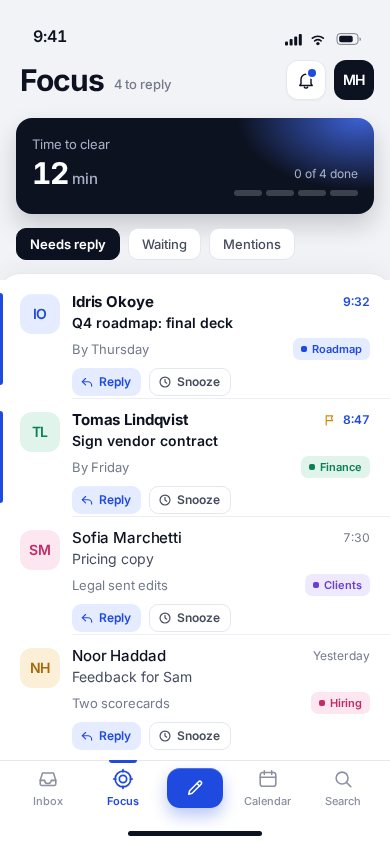
Postbox Focus inbox screen
A list screen from Postbox, an email for busy teams app template in an Enterprise style. Screen 13 of 25.
Postbox is a complete email client: welcome, sign in, connecting an account, a code and inbox setup, the inbox with a focus card, swipe actions, a thread with attachments and quick replies, compose with a keyboard, sent with undo, snooze, the snoozed list, a focus inbox, search and results, labels and label editing, a calendar invite, the day's agenda, attachments, reply time insights, notifications, a Pro plan, accounts and settings. Cobalt marks whatever is unread, selected or next.
| Detail | Value |
|---|---|
| Screen type | List |
| App | Postbox: Email for busy teams |
| Category | Productivity |
| Design language | Enterprise, light |
| Type | Inter |
| Colours | #f2f3f6 background, #ffffff surface, #0d1220 text, #737a8c text-muted, #1f4ae0 accent, #ffffff accent-contrast, #e6ecff secondary, #e4e7ee border, #dc3b3b danger |
What this screen says
- Focus
- 4 to reply
- MH
- Time to clear12min
- 0 of 4 done
- Needs reply Waiting Mentions
- IO
- Idris Okoye9:32
- Q4 roadmap: final deck
- By Thursday Roadmap
- Reply
- Snooze
- TL
- Tomas Lindqvist 8:47
- Sign vendor contract
- By Friday Finance
- SM
- Sofia Marchetti7:30
- Pricing copy
- Legal sent edits Clients
- NH
- Noor HaddadYesterday
- Feedback for Sam
- Two scorecards Hiring
- Inbox
- Calendar
- Search
Around it in Postbox
More list and feed screens
- Inkwell Prompts: Daily journal
- Shortlist Notifications: Job search and application tracker
- Parley Add members: Team messenger
- Docket Notifications: Task and sprint planner
- Kanso Notifications: Tasks, calendar and chat
- Margin Notebooks: AI note taking
- Aide Notifications: Executive AI assistant
- Juno Models: AI chat assistant
- Opal Projects: Studio dashboard
- Jot Folders: Quick notes and checklists
- Chrono Alarms: World clock, timers and stopwatch
- Frontdesk Views: Customer support inbox
Every productivity app list screen
What makes a good list screen
- Show what people need to decide. Each row should carry just enough to choose: a title, one or two details and a status. Everything else belongs on the detail screen.
- Keep rows consistent. The same information in the same place on every row lets people scan down a column instead of reading each item.
- Group with headings. Dates, categories or status headings break long lists into chunks people can skip through.
- Make common actions quick. Swipe actions, a checkbox or a heart on the row save opening the item for small tasks.
The full list screen guide and every example
Remix Postbox free: describe your own app and it is drawn in this design. Or get its files from $10: Figma, React Native, SwiftUI, Flutter and HTML.