Templates · Onboarding screens · Productivity app · Ping
Ping Permissions screen
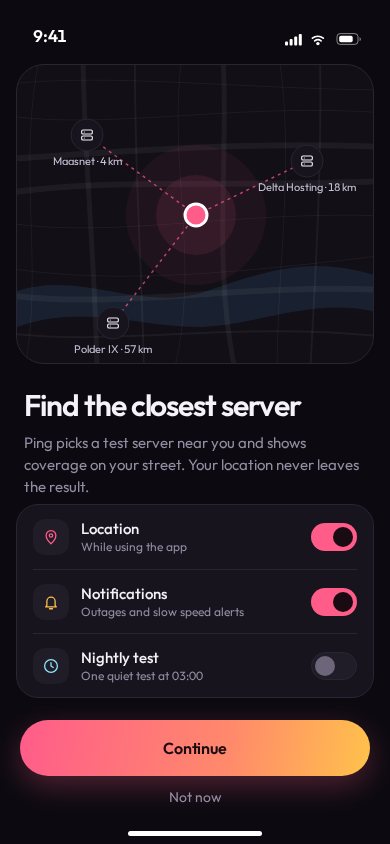
An onboarding screen from Ping, an internet speed test app template in a Dark-first style. Screen 2 of 25.
Ping is a complete internet speed test app: welcome, location permission and sign in, a home with the GO gauge, live download and upload tests, a result with plan check, test details with latency ranges, results history and 30 day insights, server picker, a hex coverage map, provider rankings and a provider page, a video streaming test and its result, a Wi-Fi channel analyzer, a room by room signal finder, nearby outages, a report to your provider, a Plus plan with checkout, alerts, profile and settings. Plum black with signal rose, sodium amber and ice.
| Detail | Value |
|---|---|
| Screen type | Onboarding |
| App | Ping: Internet speed test |
| Category | Productivity |
| Design language | Dark-first, dark |
| Type | Outfit |
| Colours | #0c0a10 background, #17141d surface, #f6f2f8 text, #958da3 text-muted, #ff5c8a accent, #1a0a12 accent-contrast, #ffc24b secondary, #2a2533 border, #ff6b5b danger |
What this screen says
- Maasnet · 4 km Delta Hosting · 18 km Polder IX · 57 km
- Find the closest server
- Ping picks a test server near you and shows coverage on your street. Your location never leaves the result.
- Location
- While using the app
- Notifications
- Outages and slow speed alerts
- Nightly test
- One quiet test at 03:00
- Continue
- Not now
Around it in Ping
More onboarding screens
- Inkwell Welcome: Daily journal
- Shortlist Welcome: Job search and application tracker
- Parley Welcome: Team messenger
- Docket Welcome: Task and sprint planner
- Kanso Welcome: Tasks, calendar and chat
- Margin Welcome: AI note taking
- Aide Welcome: Executive AI assistant
- Juno Welcome: AI chat assistant
- Opal Welcome: Studio dashboard
- Jot Welcome: Quick notes and checklists
- Chrono Welcome: World clock, timers and stopwatch
- Frontdesk Welcome: Customer support inbox
Every productivity app onboarding screen
What makes a good onboarding screen
- One idea per screen. Each screen should say one thing in a headline people can read in a second. If a screen needs a paragraph, it is doing too much.
- Personalise with a purpose. Ask a question only if the answer changes what people see next, like a goal, a level or an interest. Then show that the answer mattered.
- Explain permissions before asking. Show your own screen saying why you need notifications, location or the camera before the system prompt. People who understand the reason are more likely to allow it.
- Let people skip. A visible skip or "I'll do this later" respects returning users and the impatient. Make sure skipping still lands them somewhere useful.
The full onboarding screen guide and every example
Remix Ping free: describe your own app and it is drawn in this design. Or get its files from $10: Figma, React Native, SwiftUI, Flutter and HTML.