Templates · List and feed screens · Productivity app · Meridian
Meridian History screen
A list screen from Meridian, a mobile web browser app template in a Glass style. Screen 15 of 25.
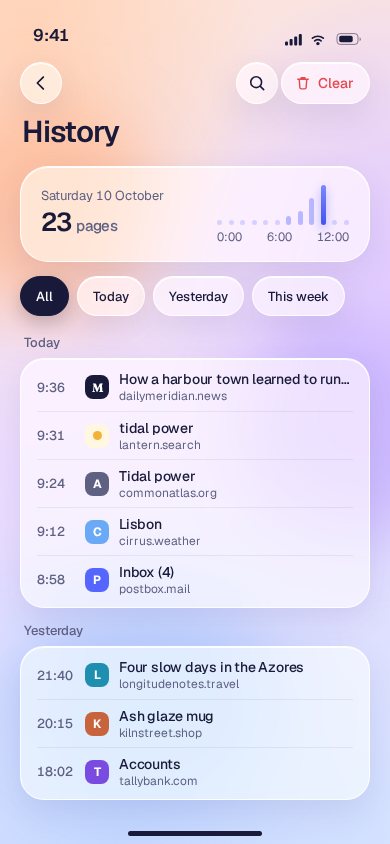
Meridian is a complete mobile web browser: welcome and set up, a calm start page with favourites, the address bar with suggestions, search results, a drawn news article with a floating glass toolbar, reader view, the tab grid, tab groups and private tabs, the page menu and share sheets, bookmarks, history, reading list, downloads, find on page, translate, a weekly privacy report, site settings, passwords, sync and settings. Frosted glass over a peach, lilac and sky wallpaper with one blue violet accent.
| Detail | Value |
|---|---|
| Screen type | List |
| App | Meridian: Mobile web browser |
| Category | Productivity |
| Design language | Glass, light |
| Type | Geist |
| Colours | #f1e8fa background, #ffffff surface, #191a3a text, #5f6183 text-muted, #5466ff accent, #ffffff accent-contrast, #ff9d72 secondary, #e3dcf2 border, #e5484d danger |
What this screen says
- Clear
- History
- Saturday 10 October
- 23 pages
- All
- Today
- Yesterday
- This week
- 9:36M
- How a harbour town learned to run…
- dailymeridian.news
- tidal power
- lantern.search
- 9:24A
- commonatlas.org
- 9:12C
- Lisbon
- cirrus.weather
- 8:58P
- Inbox (4)
- postbox.mail
- 21:40L
- Four slow days in the Azores
- longitudenotes.travel
- 20:15K
- Ash glaze mug
- kilnstreet.shop
- 18:02T
- Accounts
- tallybank.com
Around it in Meridian
More list and feed screens
- Inkwell Prompts: Daily journal
- Shortlist Notifications: Job search and application tracker
- Parley Add members: Team messenger
- Docket Notifications: Task and sprint planner
- Kanso Notifications: Tasks, calendar and chat
- Margin Notebooks: AI note taking
- Aide Notifications: Executive AI assistant
- Juno Models: AI chat assistant
- Opal Projects: Studio dashboard
- Jot Folders: Quick notes and checklists
- Chrono Alarms: World clock, timers and stopwatch
- Frontdesk Views: Customer support inbox
Every productivity app list screen
What makes a good list screen
- Show what people need to decide. Each row should carry just enough to choose: a title, one or two details and a status. Everything else belongs on the detail screen.
- Keep rows consistent. The same information in the same place on every row lets people scan down a column instead of reading each item.
- Group with headings. Dates, categories or status headings break long lists into chunks people can skip through.
- Make common actions quick. Swipe actions, a checkbox or a heart on the row save opening the item for small tasks.
The full list screen guide and every example
Remix Meridian free: describe your own app and it is drawn in this design. Or get its files from $10: Figma, React Native, SwiftUI, Flutter and HTML.