Templates · Onboarding screens · Social app · Linkup
Linkup Your goals screen
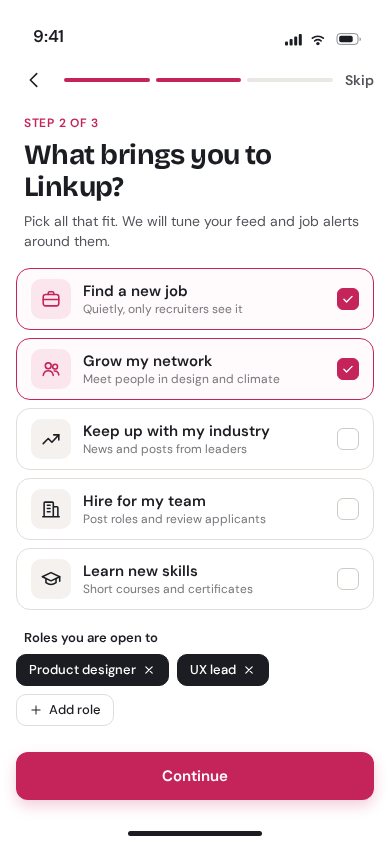
An onboarding screen from Linkup, a professional network and jobs app template in an Enterprise style. Screen 2 of 25.
Linkup is a complete professional network: welcome, goals and sign in, a home feed of posts with reactions, a post with its comments, writing a post, your profile with experience, another member's profile, skills with endorsements, my network with invitations, people search, jobs with recommendations and filtered results, a job with a quick apply flow, review and confirmation, an applications tracker, messages and a conversation, notifications, who viewed your profile, a company page, a Pro plan and settings. Warm white and graphite with a single raspberry.
| Detail | Value |
|---|---|
| Screen type | Onboarding |
| App | Linkup: Professional network and jobs |
| Category | Social |
| Design language | Enterprise, light |
| Type | Bricolage Grotesque for headings, DM Sans for text |
| Colours | #f6f5f3 background, #ffffff surface, #1c1d22 text, #7a767c text-muted, #c4245a accent, #fbe6ee accent-tint, #1c1d22 secondary, #f0a43a highlight, #ebe7e3 border, #2f8f6a success |
What this screen says
- Skip
- Step 2 of 3
- What brings you to Linkup?
- Pick all that fit. We will tune your feed and job alerts around them.
- Find a new jobQuietly, only recruiters see it
- Grow my networkMeet people in design and climate
- Keep up with my industryNews and posts from leaders
- Hire for my teamPost roles and review applicants
- Learn new skillsShort courses and certificates
- Roles you are open to
- Product designer UX lead Add role
- Continue
Around it in Linkup
More onboarding screens
- Nearly Welcome: Dating by crossed paths
- Quorum Welcome: Questions and expert answers
- Backer Welcome: Support creators with memberships
- Pledge Welcome: Back creative projects
- Civic Welcome: Report issues and city services
- Guild Welcome: Community servers with voice and text chat
- Parrot Welcome: Private messaging, groups and calls
- Carrier Welcome: Cloud messaging with channels
- Vista Welcome: Photos, stories and reels
- Flick Welcome: Short video feed
- Squawk Welcome: Short posts and live conversation
- Agora Welcome: Communities, threads and votes
Every social app onboarding screen
What makes a good onboarding screen
- One idea per screen. Each screen should say one thing in a headline people can read in a second. If a screen needs a paragraph, it is doing too much.
- Personalise with a purpose. Ask a question only if the answer changes what people see next, like a goal, a level or an interest. Then show that the answer mattered.
- Explain permissions before asking. Show your own screen saying why you need notifications, location or the camera before the system prompt. People who understand the reason are more likely to allow it.
- Let people skip. A visible skip or "I'll do this later" respects returning users and the impatient. Make sure skipping still lands them somewhere useful.
The full onboarding screen guide and every example
Remix Linkup free: describe your own app and it is drawn in this design. Or get its files from $10: Figma, React Native, SwiftUI, Flutter and HTML.