Templates · Onboarding screens · Social app · Guild
Guild Welcome screen
An onboarding screen from Guild, a social app template in a Dark-first style. Screen 1 of 25.
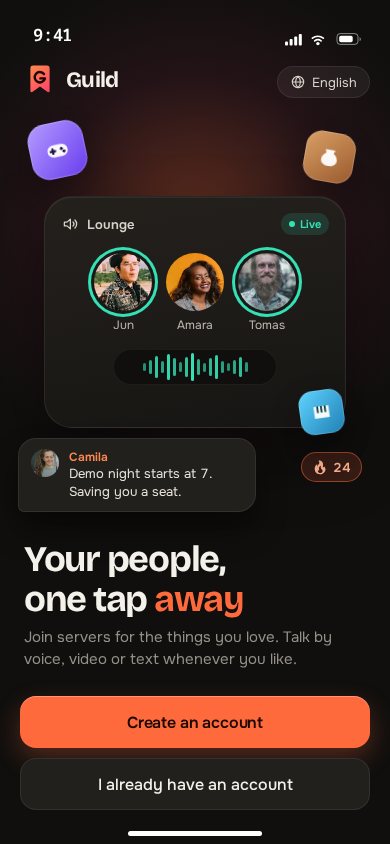
Guild is a complete community chat app: welcome, sign in, a code check and interests, a home with a server rail and channel list, a busy text channel with replies, reactions and a thread, a voice room with video and a shared screen, a live stage, direct messages, discover and a server preview, message search, members and a member card, create a server, an event, server insights, an inbox, a Plus plan with checkout and confirmation, profile and settings. Warm charcoal with ember orange and a teal for live voice.
| Detail | Value |
|---|---|
| Screen type | Onboarding |
| App | Guild: Community servers with voice and text chat |
| Category | Social |
| Design language | Dark-first, dark |
| Type | Bricolage Grotesque for headings, Onest for text |
| Colours | #100f0e background, #191816 surface, #f4f1ea text, #948f87 text-muted, #ff6a3d accent, #1b0700 accent-contrast, #35e0b5 secondary, #2c2a26 border, #ff4d5e danger |
What this screen says
- Guild
- English
- LoungeLive
- Jun
- Amara
- Tomas
- Camila
- Demo night starts at 7. Saving you a seat.
- 🔥 24
- Your people,
- one tap away
- Join servers for the things you love. Talk by voice, video or text whenever you like.
- Create an account
- I already have an account
Around it in Guild
More onboarding screens
- Quorum Welcome: Questions and expert answers
- Backer Welcome: Support creators with memberships
- Pledge Welcome: Back creative projects
- Civic Welcome: Report issues and city services
- Parrot Welcome: Private messaging, groups and calls
- Carrier Welcome: Cloud messaging with channels
- Vista Welcome: Photos, stories and reels
- Flick Welcome: Short video feed
- Squawk Welcome: Short posts and live conversation
- Agora Welcome: Communities, threads and votes
- Spark Welcome: Swipe dating
- Candid Welcome: One real photo a day
Every social app onboarding screen
What makes a good onboarding screen
- One idea per screen. Each screen should say one thing in a headline people can read in a second. If a screen needs a paragraph, it is doing too much.
- Personalise with a purpose. Ask a question only if the answer changes what people see next, like a goal, a level or an interest. Then show that the answer mattered.
- Explain permissions before asking. Show your own screen saying why you need notifications, location or the camera before the system prompt. People who understand the reason are more likely to allow it.
- Let people skip. A visible skip or "I'll do this later" respects returning users and the impatient. Make sure skipping still lands them somewhere useful.
The full onboarding screen guide and every example
Remix Guild free: describe your own app and it is drawn in this design. Or get its files from $10: Figma, React Native, SwiftUI, Flutter and HTML.