Templates · Success and confirmation screens · Finance app · Envelope
Envelope Reconciled screen
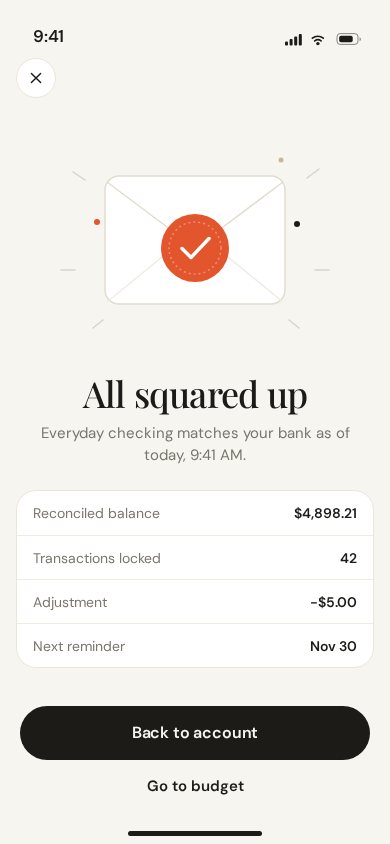
A success screen from Envelope, a finance app template in a Minimal style. Screen 16 of 25.
Envelope is a complete zero based budgeting app: welcome and category setup, sign in, a monthly budget with money ready to assign and category groups, a category with assigned, activity and available, assigning on a keypad, moving money to cover overspending, targets and quick assign, accounts and an account register, a transaction, adding and splitting transactions, reconciling with a confirmation, spending, net worth and age of money reports, search, scheduled transactions, notifications, a membership plan, profile and settings. Warm paper and ink with one vermilion accent.
| Detail | Value |
|---|---|
| Screen type | Success |
| App | Envelope: Give every dollar a job |
| Category | Finance |
| Design language | Minimal, light |
| Type | Playfair Display for headings, DM Sans for text |
| Colours | #f7f5f0 background, #ffffff surface, #1c1b18 text, #7a766d text-muted, #e2552d accent, #ffffff accent-contrast, #1c1b18 secondary, #ebe6dc border, #c8392b danger |
What this screen says
- All squared up
- Everyday checking matches your bank as of today, 9:41 AM.
- Reconciled balance $4,898.21
- Transactions locked 42
- Adjustment -$5.00
- Next reminder Nov 30
- Back to account
- Go to budget
Around it in Envelope
More success and confirmation screens
- Marigold Sent: Mobile banking
- Zentra Swap complete: Crypto trading
- Payday Payroll submitted: Payroll for small teams
- Roundup Invested: Invest your spare change
- Recur Cancelled: Track and cancel subscriptions
- Keel Card ready: Corporate cards and spend controls
- Giftly Sent: Gift cards, sent and stored
- Zap Sent: Pay friends with a note
- Billfold Card added: Cards, passes and tickets wallet
- Payly Payment done: UPI payments, recharges and bills
- Crest Bill paid: Credit card bills and rewards
- Storefront Label ready: Run your online store
Every finance app success screen
What makes a good confirmation screen
- Confirm in the headline. "Payment sent", "Table booked for Friday at 8" or "Lesson complete" in plain words, with a clear success colour or icon.
- Repeat the key details. Amount, date, reference number or score, so people do not need to check elsewhere that the right thing happened.
- Say what happens next. When the order arrives, when the money lands, when the next lesson unlocks.
- Offer the next step. Track the order, add to calendar, share, or start the next lesson. One primary action and a way back home.
The full confirmation screen guide and every example
Remix Envelope free: describe your own app and it is drawn in this design. Or get its files from $10: Figma, React Native, SwiftUI, Flutter and HTML.