Templates · List and feed screens · Education app · Encore
Encore Notifications screen
A list screen from Encore, a creator courses app template in a Dark-first style. Screen 6 of 25.
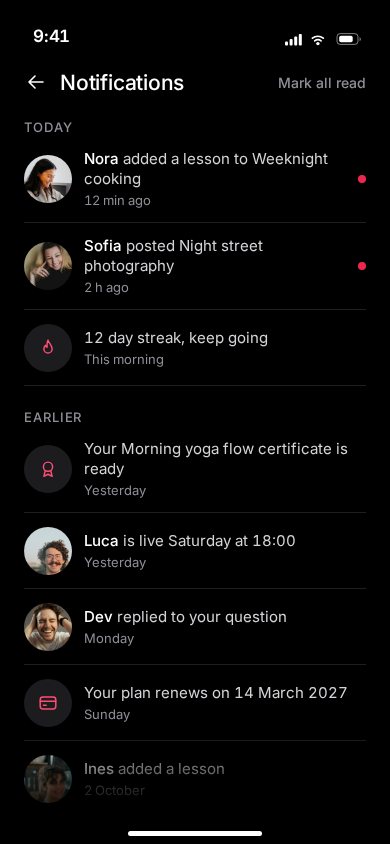
Encore is a complete creator course marketplace: welcome, sign in, a verification code, interests, a feed with a featured course and continue watching, explore, search, categories, a course page with chapters, the lesson player, reviews, creators and creator profiles, subscription plans, checkout, a confirmation, my courses, downloads, a saved list, learning progress, a certificate, purchases, account and settings. Pure black with a single crimson to pink gradient and plenty of photography.
| Detail | Value |
|---|---|
| Screen type | List |
| App | Encore: Creator courses |
| Category | Education |
| Design language | Dark-first, dark |
| Type | Inter |
| Colours | #000000 background, #1a1a1c surface, #ffffff text, #8f8f97 text-muted, #ee2752 accent, #ffffff accent-contrast, #3a3a3e secondary, #2a2a2e border, #ff5a4d danger |
What this screen says
- Notifications
- Mark all read
- Today
- Nora added a lesson to Weeknight cooking
- 12 min ago
- Sofia posted Night street photography
- 2 h ago
- 12 day streak, keep going
- This morning
- Earlier
- Your Morning yoga flow certificate is ready
- Yesterday
- Luca is live Saturday at 18:00
- Dev replied to your question
- Monday
- Your plan renews on 14 March 2027
- Sunday
- Ines added a lesson
- 2 October
Around it in Encore
More list and feed screens
- Zenith Planets: Night sky guide
- Chalk Category: Design courses
- Classroom Classwork: Class stream and assignments
- Studyhall Assigned: Free lessons and practice for school
- Tutor Reviews: Book online tutors for any skill
- Leaf Library: E-books and reading
- Almanac Contents: The free encyclopedia reader
- Tiles Archive: Daily word and number puzzles
- Stacks Loans: Borrow e-books and audiobooks from your library
- Penpal Chats: Language exchange chat
- Lexis In the wild: A word a day
- Quanta Lab notebook: Interactive physics lessons
Every education app list screen
What makes a good list screen
- Show what people need to decide. Each row should carry just enough to choose: a title, one or two details and a status. Everything else belongs on the detail screen.
- Keep rows consistent. The same information in the same place on every row lets people scan down a column instead of reading each item.
- Group with headings. Dates, categories or status headings break long lists into chunks people can skip through.
- Make common actions quick. Swipe actions, a checkbox or a heart on the row save opening the item for small tasks.
The full list screen guide and every example
Remix Encore free: describe your own app and it is drawn in this design. Or get its files from $10: Figma, React Native, SwiftUI, Flutter and HTML.