Templates · Onboarding screens · Sports app · Courtside
Courtside Your game screen
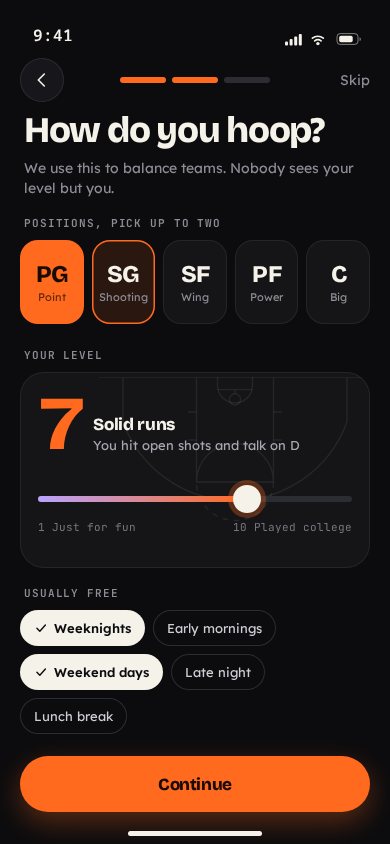
An onboarding screen from Courtside, a pickup basketball games app template in a Gen Z style. Screen 2 of 25.
Courtside is a complete pickup basketball app: welcome, your game, sign in and a code, a home with the next run and open spots nearby, a courts map, court and run pages, joining a run with a split court fee and a locked in pass, starting your own run, my runs, the run chat, a live scoreboard to 21, a box score, rating the run, season stats, a city leaderboard, highlights, your crew, player cards, notifications, Courtside Pro, profile and settings. Asphalt black, chalk white, ball orange and lilac.
| Detail | Value |
|---|---|
| Screen type | Onboarding |
| App | Courtside: Pickup basketball games |
| Category | Sports |
| Design language | Gen Z, dark |
| Type | Bricolage Grotesque for headings, Lexend for text |
| Colours | #0c0c0e background, #151518 surface, #f5f2ea text, #8e8c96 text-muted, #ff6a1f accent, #1a0b02 accent-contrast, #b8a4ff secondary, #24242a border, #ff4766 danger |
What this screen says
- Skip
- How do you hoop?
- We use this to balance teams. Nobody sees your level but you.
- Positions, pick up to two
- PGPoint
- SGShooting
- SFWing
- PFPower
- CBig
- Your level
- Solid runsYou hit open shots and talk on D
- 1 Just for fun 10 Played college
- Usually free
- Weeknights Early mornings Weekend days Late night Lunch break
- Continue
Around it in Courtside
More onboarding screens
- Ollie Welcome: Skate spots and clips
- Eddy Welcome: River levels for paddlers
- Whistle Welcome: Grassroots league manager for coaches
- Oche Welcome: Darts scorer and leagues
- Cairn Welcome: Trails, contours and summits on one map sheet
- Lapse Welcome: Swim training
- Angler Welcome: A fishing log drawn on the depth chart
- Piste Welcome: Ski resort companion
- Crag Welcome: Climbing gym logbook
- Fairway Welcome: Golf course guide and scorecard
- Matchday Welcome: Football scores and fantasy
- Rally Welcome: Tennis and padel club
Every sports app onboarding screen
What makes a good onboarding screen
- One idea per screen. Each screen should say one thing in a headline people can read in a second. If a screen needs a paragraph, it is doing too much.
- Personalise with a purpose. Ask a question only if the answer changes what people see next, like a goal, a level or an interest. Then show that the answer mattered.
- Explain permissions before asking. Show your own screen saying why you need notifications, location or the camera before the system prompt. People who understand the reason are more likely to allow it.
- Let people skip. A visible skip or "I'll do this later" respects returning users and the impatient. Make sure skipping still lands them somewhere useful.
The full onboarding screen guide and every example
Remix Courtside free: describe your own app and it is drawn in this design. Or get its files from $10: Figma, React Native, SwiftUI, Flutter and HTML.