Templates · Onboarding screens · Education app · Buzzer
Buzzer Welcome screen
An onboarding screen from Buzzer, a live trivia app template in a Gen Z style. Screen 1 of 25.
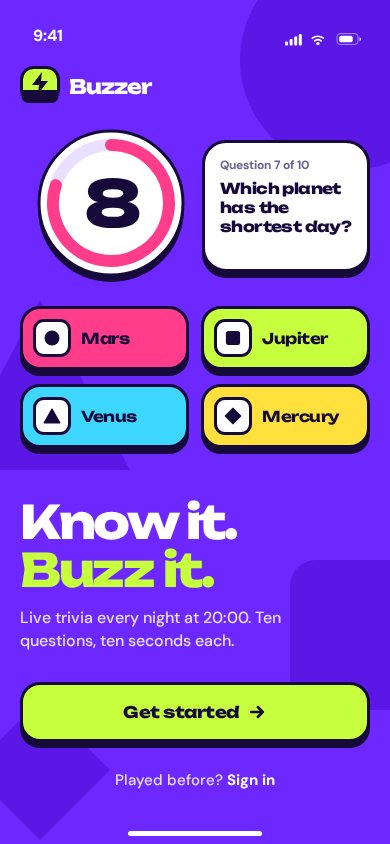
Buzzer is a complete live trivia app: welcome, sign in, picking topics and a name, a home counting down to the daily quiz, the lobby, a question with a countdown ring, the answer reveal, results and a podium, leagues with promotion zones, challenging a friend head to head, friends, categories, building and publishing your own quiz, stats, a Plus plan, notifications, profile and settings. Everything is drawn: shape marks, geometric avatars, shields and podiums.
| Detail | Value |
|---|---|
| Screen type | Onboarding |
| App | Buzzer: Live trivia |
| Category | Education |
| Design language | Gen Z, light |
| Type | DM Sans |
| Colours | #6d28ff background, #ffffff surface, #160a3a text, #6b6190 text-muted, #c6ff3d accent, #160a3a accent-contrast, #ff3d8b secondary, #160a3a border, #3dd6ff info |
What this screen says
- Buzzer
- Question 7 of 10
- Which planet has the shortest day?
- Mars
- Jupiter
- Venus
- Mercury
- Know it.
- Buzz it.
- Live trivia every night at 20:00. Ten questions, ten seconds each.
- Get started
- Played before? Sign in
Around it in Buzzer
More onboarding screens
- Skim Welcome: Speed reading trainer
- Terra Welcome: Geography and flags quiz
- Gambit Welcome: Chess training
- Homeroom Welcome: School, all on one page
- Parla Welcome: Language learning
- Recall Welcome: Flashcards and spaced repetition
- Numo Welcome: Kids maths game
- Syntax Welcome: Learn to code
- Tuckin Welcome: Bedtime stories for kids
- Zenith Welcome: Night sky guide
- Chalk Welcome: Design courses
- Encore Welcome: Creator courses
Every education app onboarding screen
What makes a good onboarding screen
- One idea per screen. Each screen should say one thing in a headline people can read in a second. If a screen needs a paragraph, it is doing too much.
- Personalise with a purpose. Ask a question only if the answer changes what people see next, like a goal, a level or an interest. Then show that the answer mattered.
- Explain permissions before asking. Show your own screen saying why you need notifications, location or the camera before the system prompt. People who understand the reason are more likely to allow it.
- Let people skip. A visible skip or "I'll do this later" respects returning users and the impatient. Make sure skipping still lands them somewhere useful.
The full onboarding screen guide and every example
Remix Buzzer free: describe your own app and it is drawn in this design. Or get its files from $10: Figma, React Native, SwiftUI, Flutter and HTML.