Templates · Onboarding screens · Social app · Candid
Candid How it works screen
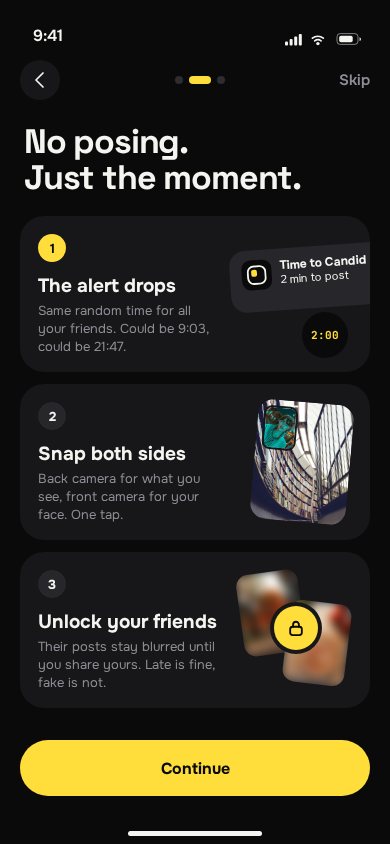
An onboarding screen from Candid, an one real photo a day app template in a Gen Z style. Screen 2 of 25.
Candid is a complete daily photo app for close friends: welcome, how it works, phone sign in and code, finding friends, a locked feed, the two minute prompt, a dual camera with review and a posted screen, the unlocked friends feed, a post with comments, selfie reactions and a reaction camera, discovery, friends and requests, a friend's profile, a memories calendar, a single memory, a monthly recap, Candid Plus, notifications, your profile and settings. Near black with flash yellow and lilac.
| Detail | Value |
|---|---|
| Screen type | Onboarding |
| App | Candid: One real photo a day |
| Category | Social |
| Design language | Gen Z, dark |
| Type | Space Grotesk for headings, Onest for text |
| Colours | #0a0a0b background, #17171a surface, #f4f4f0 text, #8d8d95 text-muted, #ffde3b accent, #0a0a0b accent-contrast, #c3a8ff secondary, #26262b border, #ff5a4e danger |
What this screen says
- Skip
- No posing.
- Just the moment.
- The alert drops
- Same random time for all your friends. Could be 9:03, could be 21:47.
- Time to Candid2 min to post
- Snap both sides
- Back camera for what you see, front camera for your face. One tap.
- Unlock your friends
- Their posts stay blurred until you share yours. Late is fine, fake is not.
- Continue
Around it in Candid
More onboarding screens
- Vista Welcome: Photos, stories and reels
- Flick Welcome: Short video feed
- Squawk Welcome: Short posts and live conversation
- Agora Welcome: Communities, threads and votes
- Spark Welcome: Swipe dating
- Blink Welcome: Camera chat and stories
- Cipher Welcome: Encrypted private messenger
- Commons Welcome: Friends, groups and events
- Tether Welcome: Family location and safety
- Facet Welcome: Video calls with family and friends
- Stoop Welcome: Neighbourhood noticeboard
- Aura Welcome: Moods with close friends
Every social app onboarding screen
What makes a good onboarding screen
- One idea per screen. Each screen should say one thing in a headline people can read in a second. If a screen needs a paragraph, it is doing too much.
- Personalise with a purpose. Ask a question only if the answer changes what people see next, like a goal, a level or an interest. Then show that the answer mattered.
- Explain permissions before asking. Show your own screen saying why you need notifications, location or the camera before the system prompt. People who understand the reason are more likely to allow it.
- Let people skip. A visible skip or "I'll do this later" respects returning users and the impatient. Make sure skipping still lands them somewhere useful.
The full onboarding screen guide and every example
Remix Candid free: describe your own app and it is drawn in this design. Or get its files from $10: Figma, React Native, SwiftUI, Flutter and HTML.