Templates · Onboarding screens · Lifestyle app · Brief
Brief Pick topics screen
An onboarding screen from Brief, a news in sixty words app template in a Minimal style. Screen 2 of 25.
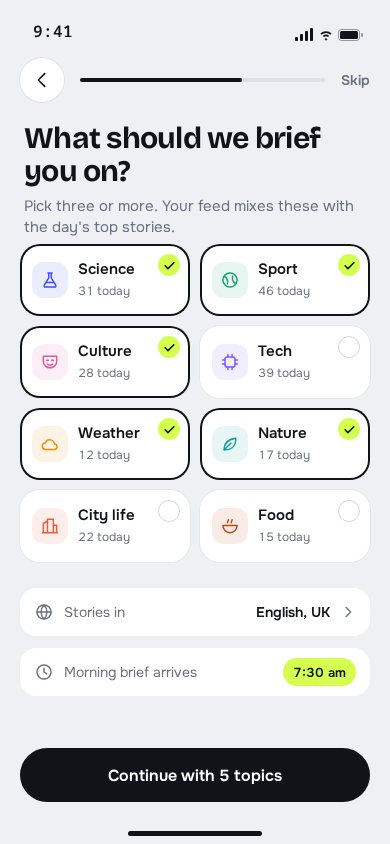
Brief is a complete short news app: welcome, topic picks, sign in and a code, a feed of full screen sixty word story cards stacked like a deck, the full story reader, a morning brief, discover with sections and trending topics, search, a section page, a trending topic timeline, a poll and its results, a weather card, a short video, an audio brief player, a weekly quiz with a score, a share card, saved stories, notifications, reading stats, a Plus plan, profile and settings. Cool grey and white with ink black, one lime highlight and a colour dot per section.
| Detail | Value |
|---|---|
| Screen type | Onboarding |
| App | Brief: News in sixty words |
| Category | Lifestyle |
| Design language | Minimal, light |
| Type | Bricolage Grotesque for headings, Onest for text |
| Colours | #eef0f3 background, #ffffff surface, #101318 text, #6a7180 text-muted, #101318 accent, #ffffff accent-contrast, #d4ff4f secondary, #e3e6eb border, #ef4444 danger |
What this screen says
- Skip
- What should we brief you on?
- Pick three or more. Your feed mixes these with the day's top stories.
- Science31 today
- Sport46 today
- Culture28 today
- Tech39 today
- Weather12 today
- Nature17 today
- City life22 today
- Food15 today
- Stories inEnglish, UK
- Morning brief arrives7:30 am
- Continue with 5 topics
Around it in Brief
More onboarding screens
- Fern Welcome: Plant care
- Doorstep Welcome: Homes for sale and rent
- Rewear Welcome: Secondhand fashion marketplace
- Laced Welcome: Sneaker drops and raffles
- Gloss Welcome: Salon and spa booking
- Vow Welcome: Wedding planner
- Drizzle Welcome: Weather with living skies
- Byline Welcome: Daily news reader
- Shelf Welcome: Reading tracker and book club
- Marquee Welcome: Cinema tickets and watchlist
- Handy Welcome: Home services
- Tasker Welcome: Book and do local odd jobs
Every lifestyle app onboarding screen
What makes a good onboarding screen
- One idea per screen. Each screen should say one thing in a headline people can read in a second. If a screen needs a paragraph, it is doing too much.
- Personalise with a purpose. Ask a question only if the answer changes what people see next, like a goal, a level or an interest. Then show that the answer mattered.
- Explain permissions before asking. Show your own screen saying why you need notifications, location or the camera before the system prompt. People who understand the reason are more likely to allow it.
- Let people skip. A visible skip or "I'll do this later" respects returning users and the impatient. Make sure skipping still lands them somewhere useful.
The full onboarding screen guide and every example
Remix Brief free: describe your own app and it is drawn in this design. Or get its files from $10: Figma, React Native, SwiftUI, Flutter and HTML.