Templates · Onboarding screens · Fitness app · Tabata
Tabata Welcome screen
An onboarding screen from Tabata, an HIIT interval timer app template in a Neubrutalism style. Screen 1 of 25.
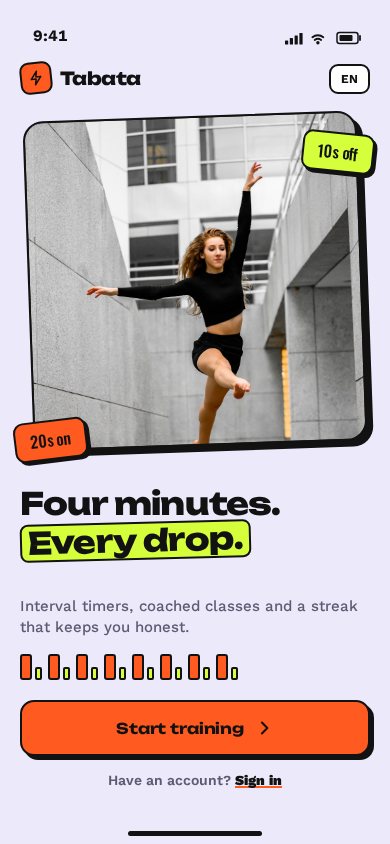
Tabata is a complete HIIT interval timer: welcome, a goal picker, sign in, a home with today's round strip and streak, a workout library with search, workout and exercise pages, a timer builder, a get ready count in, a live work phase and a rest phase, a finish screen and an effort log, history and a past session with heart rate, weekly stats, live coached classes with booking and a confirmation, a Plus plan, notifications, profile and settings. Lilac paper, black outlines, blaze orange work and acid lime rest.
| Detail | Value |
|---|---|
| Screen type | Onboarding |
| App | Tabata: HIIT interval timer |
| Category | Health and fitness |
| Design language | Neubrutalism, light |
| Type | Unbounded for headings, Work Sans for text |
| Colours | #ece9fb background, #ffffff surface, #121212 text, #5e5a72 text-muted, #ff5a1f accent, #121212 accent-contrast, #d4ff3a secondary, #121212 border, #e8253f danger |
What this screen says
- Tabata
- EN
- 20s on
- 10s off
- Four minutes. Every drop.
- Interval timers, coached classes and a streak that keeps you honest.
- Start training
- Have an account? Sign in
Around it in Tabata
More onboarding screens
- Dew Welcome: AI skin scan and routine
- Cradle Welcome: Baby tracker
- Medly Welcome: Doctor on call
- Donor Welcome: Blood donation, counted drop by drop
- Unfold Welcome: Yoga and stretching
- Kilo Welcome: Strength training log
- Cyra Welcome: Cycle tracker
- Harbor Welcome: Therapy and mood
- Fasten Welcome: Intermittent fasting
- Plate Welcome: Calorie and macro tracker
- Vita Welcome: Personal health record
- Forge Welcome: AI fitness and nutrition
Every fitness app onboarding screen
What makes a good onboarding screen
- One idea per screen. Each screen should say one thing in a headline people can read in a second. If a screen needs a paragraph, it is doing too much.
- Personalise with a purpose. Ask a question only if the answer changes what people see next, like a goal, a level or an interest. Then show that the answer mattered.
- Explain permissions before asking. Show your own screen saying why you need notifications, location or the camera before the system prompt. People who understand the reason are more likely to allow it.
- Let people skip. A visible skip or "I'll do this later" respects returning users and the impatient. Make sure skipping still lands them somewhere useful.
The full onboarding screen guide and every example
Remix Tabata free: describe your own app and it is drawn in this design. Or get its files from $10: Figma, React Native, SwiftUI, Flutter and HTML.