Templates · List and feed screens · Productivity app · Slot
Slot Calendar screen
A list screen from Slot, a booking links and meeting scheduling app template in a Minimal style. Screen 5 of 25.
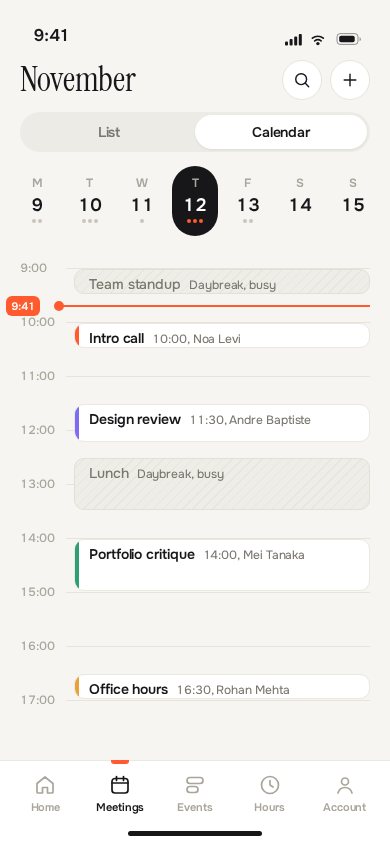
Slot is a complete scheduling app for people who take meetings: welcome, calendar connect, sign in, a home with today's timeline and your link, a week calendar, upcoming meetings and a meeting record, event types with an editor, weekly hours and date overrides, sharing, the invitee's booking page with day and time pickers, details and a confirmation, routing forms, reminder workflows, analytics, search, alerts, plans, account and settings. Paper and white with ink type, serif headlines and a vermilion accent.
| Detail | Value |
|---|---|
| Screen type | List |
| App | Slot: Booking links and meeting scheduling |
| Category | Productivity |
| Design language | Minimal, light |
| Type | Instrument Serif for headings, Onest for text |
| Colours | #f6f5f1 background, #ffffff surface, #17171a text, #7a776f text-muted, #ff5b2e accent, #fff0ea accent-soft, #e8e5dd border, #7c6cf2 event-violet, #2f9e74 event-pine / success, #e9a23b event-amber, #2f7fd8 event-ocean, #e0453a danger |
What this screen says
- November
- List Calendar
- M 9
- T 10
- W 11
- T 12
- F 13
- S 14
- S 15
- Team standupDaybreak, busy
- Intro call10:00, Noa Levi
- Design review11:30, Andre Baptiste
- LunchDaybreak, busy
- Portfolio critique14:00, Mei Tanaka
- Office hours16:30, Rohan Mehta
- Home
- Meetings
- Events
- Hours
- Account
Around it in Slot
More list and feed screens
- Pomo Notifications: Focus timer
- Postbox Swipe actions: Email for busy teams
- Daybook Day: Calendar and planner
- Scanly Notifications: Document scanner
- Keyring Logins: Password manager
- Rota Notifications: Shift scheduling for hourly teams
- Inkwell Prompts: Daily journal
- Shortlist Notifications: Job search and application tracker
- Parley Add members: Team messenger
- Docket Notifications: Task and sprint planner
- Kanso Notifications: Tasks, calendar and chat
- Margin Notebooks: AI note taking
Every productivity app list screen
What makes a good list screen
- Show what people need to decide. Each row should carry just enough to choose: a title, one or two details and a status. Everything else belongs on the detail screen.
- Keep rows consistent. The same information in the same place on every row lets people scan down a column instead of reading each item.
- Group with headings. Dates, categories or status headings break long lists into chunks people can skip through.
- Make common actions quick. Swipe actions, a checkbox or a heart on the row save opening the item for small tasks.
The full list screen guide and every example
Remix Slot free: describe your own app and it is drawn in this design. Or get its files from $10: Figma, React Native, SwiftUI, Flutter and HTML.