Templates · Figma templates · Travel · Museo
Museo Figma template: museum guide app UI kit
Museo is a museum guide app design in a Brutalist style, and its Figma file holds all 25 screens as real, editable layers: frames you can resize, text you can rewrite, and the palette and type saved as styles. A complete museum guide: welcome, sign in, create account and a code, today at the museum, notifications, exhibitions and one in full, an artwork page, an audio guide player, a floor map with a route to a gallery, tours and booking, timed tickets with checkout and a ticket to scan, collection search, favourites, a record of your visits, membership, profile and settings. Everything sits on a ruled grid in black on paper, with vermilion kept for what is live, selected or yours.
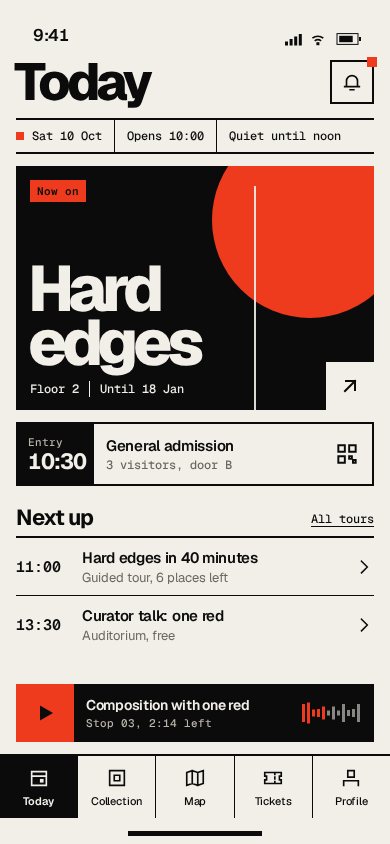
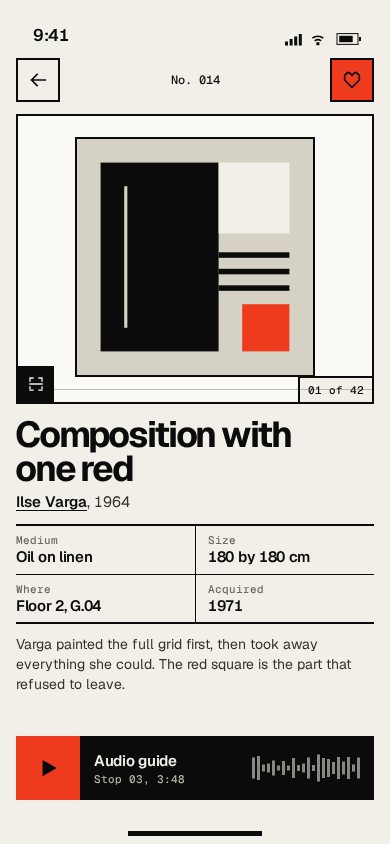
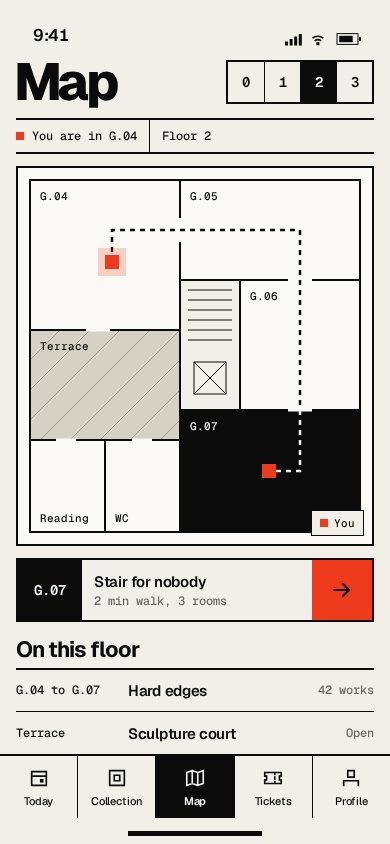
25 screens · Brutalist · Light · Travel
What the Figma file contains
| Part | What you get |
|---|---|
| Frames | 25 frames at 390 by 844, one per screen, each named after its screen (Welcome, Sign in, Create account and the rest). |
| Layers | Named layers in the order they draw: containers as frames, every label as live text you can edit, nothing flattened into a picture. |
| Colour styles | 9 colour styles, one per palette role (background, surface, text, text-muted and more), with the hex values below. Created when you import with the DraftScreens plugin. |
| Text styles | Headings and body text in Geist, saved as text styles on import with the plugin. |
| Photos | The template's photos as image fills, at full resolution. They are free-licence stock used as placeholders: swap in your own before launch. |
| Vectors | Icons, logos and illustrations as vector layers, so they stay sharp and take a new colour in one click. |
Colour styles
| Style | Hex |
|---|---|
| Museo/background | #f1efe8 |
| Museo/surface | #faf9f5 |
| Museo/text | #0b0b0b |
| Museo/text-muted | #6b6860 |
| Museo/accent | #ef3b1d |
| Museo/accent-contrast | #0b0b0b |
| Museo/secondary | #d5d1c5 |
| Museo/border | #0b0b0b |
| Museo/danger | #c22a10 |
Text styles and fonts
Headings and body text: Geist. Brutalist and typographic, like a museum's printed guide: warm off-white paper, near-black ink and one vermilion. Headlines are oversized heavy grotesque with very tight tracking, stacked in two lines and set hard against the left margin. Structure comes from 2px black rules and 1px dividers on a strict grid, never from shadows, gradients or rounded cards. Small facts are set in a mono face as catalogue labels (No. 014, G.04, Floor 2) split by short vertical ticks. Artworks are flat abstract compositions in ink, paper, stone grey and vermilion, shown in square black frames. Vermilion is rare: a small square marks what is live, here or selected, and fills the arrow cell of the primary button.
The 25 frames
| Frame | Screen type |
|---|---|
| Welcome | Onboarding |
| Sign in | Sign in |
| Create account | Sign in |
| Verify code | Sign in |
| Today | Home |
| Notifications | List |
| Exhibitions | List |
| Exhibition | Detail |
| Artwork | Detail |
| Audio guide | Media |
| Floor map | Detail |
| Find a gallery | Tracking |
| Tours | List |
| Tour | Detail |
| Book tickets | Checkout |
| Checkout | Checkout |
| Booked | Success |
| Tickets | List |
| Ticket | Detail |
| Collection | Search |
| Favourites | List |
| Your visits | Dashboard |
| Membership | Paywall |
| Profile | Profile |
| Settings | Settings |
How to import it into Figma
- Get the template. Buy Museo (files from $10, every format included), use a free download from a paid plan, or open it with a Template Pass.
- Install DraftScreens for Figma. Download the plugin, then in the Figma desktop app choose Plugins, Development, Import plugin from manifest. A Figma Community listing is coming.
- Connect and import. Run the plugin, connect your DraftScreens account with a one-time code, pick Museo and import. The frames, colour styles and text styles land in the open file.
- Or drag in the SVGs. No plugin needed: the Figma download is also a folder of SVGs, one per screen. Drag them onto the canvas and each opens as editable layers.
Get the files
Remixing Museo is free. To get the template itself, the files are from $10, and one price unlocks every format:
- Figma. Every screen as editable layers: named frames, text, vectors and photos, with colour and text styles.
- React Native (Expo). An Expo Router project with every screen, the navigation between them, the theme and the icons.
- SwiftUI. An Xcode project for iOS 17 with a SwiftUI view per screen, fonts and assets.
- Flutter. A Flutter app with go_router, a widget per screen, fonts and assets.
- HTML. Each screen as a standalone HTML file with its fonts and photos, plus the design tokens as CSS and JSON.
Get the Museo files · Museo in Figma · Museo in React Native · Every template with a Template Pass ($49 for a year)
Museo in other formats
- Museo React Native template
- Museo in SwiftUI (in the same purchase)
- Museo in Flutter (in the same purchase)
- See every Museo screen and remix it free
More travel Figma templates
- Atlas: Maps and navigation
- Kerb: Parking that reads like a road sign
- Linea: City transit
- Hollow: Cabin and boutique stays
- Aloft: Flight tracker
- Pitch: Campsite booking and trip kit
- Travel app templates
- All Figma templates
Questions people ask
- What do I need installed?
- A Figma account (the free plan works). To import with the DraftScreens for Figma plugin you need the Figma desktop app until the plugin is listed in Figma Community. Dragging in the SVGs works anywhere, including Figma in the browser.
- Is it editable, or pictures of screens?
- Editable. Text stays live text in the template's fonts, icons are vectors, containers are frames, and colours and type are saved as styles. Photos are image fills you can replace.
- Does the same purchase include code?
- Yes. One price unlocks every format of Museo: Figma, React Native (Expo), SwiftUI, Flutter and HTML. A Template Pass ($49 for a year) unlocks every template.
- Can I use the Museo template commercially?
- Yes. You can build and ship commercial apps with it, for yourself or for clients, as many as you like. What you cannot do is resell or give away the template files themselves, as a template or a UI kit. The photos are free-licence stock used as placeholders: swap in your own before launch.
- Do I get updates?
- Yes, free. You buy the template, not a version: every download builds from the latest Museo design, and your library flags a template that changed since you last downloaded it.
- Is a backend included?
- No. The download is the interface: screens, navigation, styles and assets. There is no server, database, sign in, payments or API code, and the content on each screen is static sample data for you to replace.
- What is the difference between buying and remixing?
- Remixing is free: you describe your own app and it is drawn in Museo's design, in the DraftScreens studio. Buying gets you Museo itself as files, from $10, in Figma, React Native (Expo), SwiftUI, Flutter and HTML.