Templates · List and feed screens · Finance app · Envelope
Envelope Quick assign screen
A list screen from Envelope, a finance app template in a Minimal style. Screen 9 of 25.
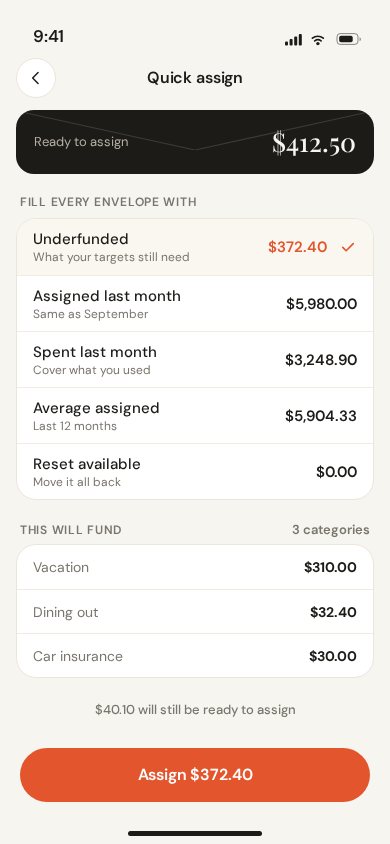
Envelope is a complete zero based budgeting app: welcome and category setup, sign in, a monthly budget with money ready to assign and category groups, a category with assigned, activity and available, assigning on a keypad, moving money to cover overspending, targets and quick assign, accounts and an account register, a transaction, adding and splitting transactions, reconciling with a confirmation, spending, net worth and age of money reports, search, scheduled transactions, notifications, a membership plan, profile and settings. Warm paper and ink with one vermilion accent.
| Detail | Value |
|---|---|
| Screen type | List |
| App | Envelope: Give every dollar a job |
| Category | Finance |
| Design language | Minimal, light |
| Type | Playfair Display for headings, DM Sans for text |
| Colours | #f7f5f0 background, #ffffff surface, #1c1b18 text, #7a766d text-muted, #e2552d accent, #ffffff accent-contrast, #1c1b18 secondary, #ebe6dc border, #c8392b danger |
What this screen says
- Quick assign
- Ready to assign
- Fill every envelope with
- Underfunded
- What your targets still need
- Assigned last month
- Same as September
- Spent last month
- Cover what you used
- Average assigned
- Last 12 months
- Reset available
- Move it all back
- This will fund
- 3 categories
- Vacation $310.00
- Dining out $32.40
- Car insurance $30.00
- $40.10 will still be ready to assign
- Assign $372.40
Around it in Envelope
More list and feed screens
- Divvy Notifications: Split bills with friends
- Ticker Movers: Stock investing
- Burrow Notifications: Shared savings pots
- Remit Notifications: International money transfer
- Piggy Chores: Pocket money for kids
- Settle Notifications: Bill payments and banking
- Fathom Notifications: Crypto wallet
- Marigold Notifications: Mobile banking
- Zentra Activity: Crypto trading
- Payday Pay runs: Payroll for small teams
- Roundup Round ups: Invest your spare change
- Recur Subscriptions: Track and cancel subscriptions
What makes a good list screen
- Show what people need to decide. Each row should carry just enough to choose: a title, one or two details and a status. Everything else belongs on the detail screen.
- Keep rows consistent. The same information in the same place on every row lets people scan down a column instead of reading each item.
- Group with headings. Dates, categories or status headings break long lists into chunks people can skip through.
- Make common actions quick. Swipe actions, a checkbox or a heart on the row save opening the item for small tasks.
The full list screen guide and every example
Remix Envelope free: describe your own app and it is drawn in this design. Or get its files from $10: Figma, React Native, SwiftUI, Flutter and HTML.