Templates · Onboarding screens · Lifestyle app · Drape
Drape Welcome screen
An onboarding screen from Drape, an AI wardrobe and daily outfits app template in a Minimal style. Screen 1 of 25.
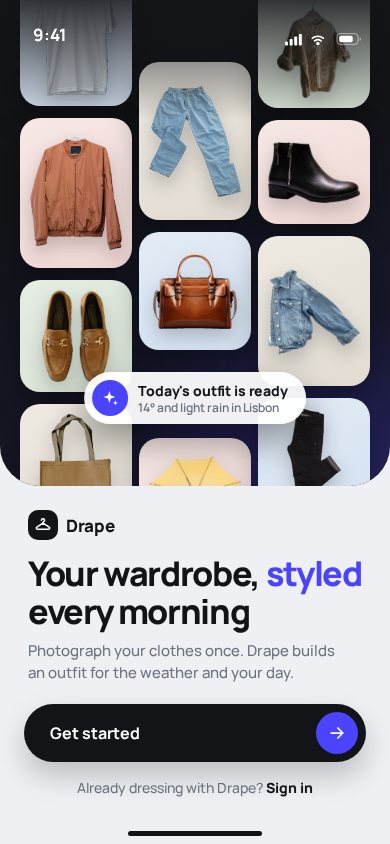
Drape is a complete AI wardrobe app: a style quiz, sizes and sign in, an outfit of the day built for the weather and the calendar, piece by piece swaps, a wardrobe grid by category, item pages with wears and cost per wear, a camera that detects and tags a garment, saved outfits and a builder, a week planner, trip packing, occasion picks, a stylist chat, stats, declutter, shopping gaps, inspiration, a paywall, profile and settings. Pale grey and white with ink and electric indigo, garments as true cut-outs on tinted tiles.
| Detail | Value |
|---|---|
| Screen type | Onboarding |
| App | Drape: AI wardrobe and daily outfits |
| Category | Lifestyle |
| Design language | Minimal, light |
| Type | Manrope |
| Colours | #eef0f3 background, #ffffff surface, #121417 text, #6b7280 text-muted, #4a43ff accent, #ffffff accent-contrast, #dbe6f2 secondary, #e1e4ea border, #d9483b danger |
What this screen says
- Today's outfit is ready14° and light rain in Lisbon
- Drape
- Your wardrobe, styled every morning
- Photograph your clothes once. Drape builds an outfit for the weather and your day.
- Get started
- Already dressing with Drape? Sign in
Around it in Drape
More onboarding screens
- Mane Welcome: AI hairstyle try-on
- Annex Welcome: AI interior redesign
- Kino Welcome: Film and series streaming
- Waybill Welcome: Every parcel, read like its label
- Torque Welcome: The workshop manual for your own car
- Vetly Welcome: Pet health record
- Stitch Welcome: A knitting companion drawn as one big knitting chart
- Roost Welcome: Your shared house, stuck to the fridge door
- Trellis Welcome: Vegetable garden planner
- Grain Welcome: Camera and photo editor
- Posy Welcome: Flower delivery and weekly stems
- Fern Welcome: Plant care
Every lifestyle app onboarding screen
What makes a good onboarding screen
- One idea per screen. Each screen should say one thing in a headline people can read in a second. If a screen needs a paragraph, it is doing too much.
- Personalise with a purpose. Ask a question only if the answer changes what people see next, like a goal, a level or an interest. Then show that the answer mattered.
- Explain permissions before asking. Show your own screen saying why you need notifications, location or the camera before the system prompt. People who understand the reason are more likely to allow it.
- Let people skip. A visible skip or "I'll do this later" respects returning users and the impatient. Make sure skipping still lands them somewhere useful.
The full onboarding screen guide and every example
Remix Drape free: describe your own app and it is drawn in this design. Or get its files from $10: Figma, React Native, SwiftUI, Flutter and HTML.